
 npm package.json Properties Explained
# npm package.json Properties Explained
This article is reproduced from https://www.cnblogs.com/tzyy/p/5193811.html (opens new window), author: TZYY
# Overview
package.json must be a strict JSON file, not just a JavaScript object. Many of its properties can be generated through npm-config.
# name
The most important properties in package.json are name and version. These two are required; otherwise the module cannot be installed. Together they form the unique identifier of an npm module. When the module content changes, the version should change accordingly.
The name property is your module name. Here are some naming rules:
namemust be 214 bytes or fewer, including the prefix (e.g., xxx/xxxmodule).namecannot start with "_" or "."It cannot contain uppercase letters
namebecomes part of a URL, so it cannot contain URL-unsafe charactersHere are some recommendations from the official documentation:
Don't use the same name as a Node core module
nameshould not contain "js" or "node". It's assumed that it's js, since you're writing a package.json file, and you can specify the engine using the "engines" field. (See below.)The
nameproperty becomes part of the module URL, a command-line argument, or a folder name. Any non-URL-safe characters cannot be used, and it cannot start with "_" or "."The
nameproperty may be used as an argument inrequire(), so it's best to keep it short and meaningful.Before creating a module, check if the
nameis already taken at: https://www.npmjs.com/ (opens new window)# Check if a package name exists before publishing npm search <ModuleName>1
2
The name property can have prefixes, e.g., @myorg/mypackage. See the npm-scope(7) documentation for details.
# version
version must be parsable by the node-semver module that npm depends on. See the dependencies section below for specific rules.
# description
A description that helps others understand your module's purpose. Also useful for search.
# keywords
An array of strings to help others find your module through search.
# homepage
The project homepage URL. Note: This is different from the url property. If you fill in the url property, npm's registry tool will assume you've published the project elsewhere and will redirect to the url property's address instead of fetching from the official npm registry. (The original documentation used the word "spit," and the author wasn't joking 😃
# bugs
An address for bug reporting or an email. People who have issues with your module can complain here, for example:
{
    "url" : "https://github.com/owner/project/issues",
    "email" : "project@hostname.com"
}
2
3
4
Both url and email are optional. If you only fill in one, you can write it as a string instead of an object. If a url is provided, the npm bugs command will use it.
# license
You should specify a license for your module so users know what permissions they have and what restrictions apply. For simple cases, use a license like BSD-3-Clause or MIT:
{ "license" : "MIT" }
You can check the license list at https://spdx.org/licenses/ (opens new window).
# User-Related Properties: author, contributors
author is a single person, contributors is an array of people. A person is an object with descriptive properties like this:
{
    "name" : "Barney Rubble",
    "email" : "b@rubble.com",
    "url" : "http://barnyrubble.tumblr.com/"
}
2
3
4
5
It can also be abbreviated as follows, and npm will convert it:
"Barney Rubble b@rubble.com (http://barnyrubble.tumblr.com/)"
Both email and url are optional. There is also a maintainers property for describing maintainer information.
# files
The files property value is an array containing file names or folder names within the module. If it's a folder name, all files within that folder are included (unless excluded by other configurations).
You can also create a .npmignore file in the module root (on Windows, you can't directly create files starting with ".", use a Linux command-line tool like git bash). Files listed in this file are excluded even if they appear in the files property. The syntax is similar to ".gitignore".
# main
The main property specifies the program's main entry point. If your module is named foo, and a user installs it and uses require("foo"), the returned content is the object pointed to by module.exports in the file specified by the main property.
It should point to a file in the module's root directory. For most modules, this property simply provides a main entry point, though many modules don't set this property.
# bin
Many modules have one or more executable files that need to be added to the PATH. npm makes this very easy (npm itself is installed as an executable command through the bin property). To use this feature, configure a bin property in package.json. The bin property is a map where keys are command names and values are local file paths:
{
    "bin" : { "myapp" : "./cli.js" }
}
2
3
When the module is installed globally, npm creates a symlink in the bin directory for the files configured in bin (on Windows, the default is C:\Users\username\AppData\Roaming\npm). For local installations, symlinks are created in the project's ./node_modules/.bin/ directory. So, following the example above, when you install myapp, npm creates a symlink at /usr/local/bin/myapp pointing to cli.js. If your module has only one executable file and its command name matches the module name, you can use a simple string instead of the configuration above:
{
    "name": "my-program",
    "version": "1.2.5",
    "bin": "./path/to/program"
}
2
3
4
5
This is equivalent to:
{
    "name": "my-program",
    "version": "1.2.5",
    "bin" : {
        "my-program" : "./path/to/program"
    }
}
2
3
4
5
6
7
# man
Specify one or more files (via an array) for Linux's man command to find documentation. If only one file is specified, after installation you can use man + module-name directly, regardless of the actual filename. For example:
{
    "name" : "foo",
    "version" : "1.2.3",
    "description" : "A packaged foo fooer for fooing foos",
    "main" : "foo.js",
    "man" : "./man/doc.1"
}
2
3
4
5
6
7
Running man foo will display the contents of ./man/doc.1. If man file names don't start with the module name, the module name prefix is added during installation. So this configuration:
{
    "name" : "foo",
    "version" : "1.2.3",
    "description" : "A packaged foo fooer for fooing foos",
    "main" : "foo.js",
    "man" : [ "./man/foo.1", "./man/bar.1" ]
}
2
3
4
5
6
7
Creates files for man foo and man foo-bar commands. Man files must end with a number, or with .gz if compressed. The number indicates which section of man the file will be installed to.
{
    "name" : "foo",
    "version" : "1.2.3",
    "description" : "A packaged foo fooer for fooing foos",
    "main" : "foo.js",
    "man" : [ "./man/foo.1", "./man/foo.2" ]
}
2
3
4
5
6
7
Creates both man foo and man 2 foo commands.
# directories
CommonJS uses directories to describe the module structure. Check npm's package.json file at https://registry.npmjs.org/npm/latest to see this field in action.
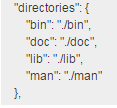 Currently this configuration has no effect, but may be put to use in the future.
# directories.lib
Tells users where the lib directory is in the module. This configuration currently has no effect, but is useful information for module users.
# directories.bin
If you specify a bin directory here, all files in that directory are added to the bin path. If you've already configured bin in package.json, this configuration has no effect.
# directories.man
Specify a directory containing man files. This is syntactic sugar for configuring man files.
# directories.doc
Place markdown files in this directory; they may someday be nicely displayed (presumably on the npm website).
# directories.example
Place example scripts here; perhaps they'll be useful someday.
# repository
Specify where the code is stored to help people who want to contribute to your project. Like this:
"repository" :
  {
      "type" : "git",
      "url" : "https://github.com/npm/npm.git"
  }

"repository" :
  {
      "type" : "svn",
      "url" : "https://v8.googlecode.com/svn/trunk/"
  }
2
3
4
5
6
7
8
9
10
11
If your module is hosted on GitHub, GitHub gist, Bitbucket, or GitLab, npm install can use shorthand:
"repository": "npm/npm"

"repository": "gist:11081aaa281"

"repository": "bitbucket:example/repo"

"repository": "gitlab:another/repo"
2
3
4
5
6
7
# scripts
The scripts property is an object specifying commands to run at various stages of the project lifecycle. Keys are lifecycle events, values are commands to execute. Specific events include install, start, stop, etc. See https://docs.npmjs.com/misc/scripts (opens new window) for details.
# config
Used to set project configuration values that rarely change, such as port. Users can reference them like this:
http.createServer(...).listen(process.env.npm_package_config_port)
And modify via npm config set foo:port 80. See https://docs.npmjs.com/misc/config (opens new window) for details.
{
    "name" : "foo",
    "config" : { "port" : "8080" }
}
2
3
4
# dependencies
The dependencies property is an object listing the module's dependencies. Keys are module names, values are version ranges. A version range is a string that can be separated by one or more spaces. Dependencies can also be specified as a git URL or a tarball URL. Don't put test tools or transpilers in dependencies. Here are some formats; see https://docs.npmjs.com/misc/semver (opens new window) for details:
- version Exact version match
- >version Must be greater than this version
- >=version Greater than or equal to
- <version Less than
- <=version Less than or equal to
- ~version "Approximately equivalent to" — see semver documentation for details
- ^version "Compatible with" — see semver documentation for details
- 1.2.x Any 1.2.x version
- http://... See URL as dependencies below
- - Any version
- "" Empty string, same as *
- version1 - version2 Equivalent to >=version1 <=version2
- range1 || range2 Either range is acceptable
- git... See Git URL as dependencies below
- user/repo See GitHub URL below
- tag A specific published tag — see npm-tag documentation https://docs.npmjs.com/getting-started/using-tags (opens new window)
- path/path/path See Local Paths below The following formats are all valid:
{ "dependencies" :
  { "foo" : "1.0.0 - 2.9999.9999"
  , "bar" : ">=1.0.2 <2.1.2"
  , "baz" : ">1.0.2 <=2.3.4"
  , "boo" : "2.0.1"
  , "qux" : "<1.0.0 || >=2.3.1 <2.4.5 || >=2.5.2 <3.0.0"
  , "asd" : "http://asdf.com/asdf.tar.gz"
  , "til" : "~1.2"
  , "elf" : "~1.2.3"
  , "two" : "2.x"
  , "thr" : "3.3.x"
  , "lat" : "latest"
  , "dyl" : "file:../dyl"
  }
}
2
3
4
5
6
7
8
9
10
11
12
13
14
15
# URLs as Dependencies
Instead of a version range, you can specify a URL pointing to a tarball. The tarball will be downloaded and installed locally during module installation.
# Git URLs as Dependencies
Git URLs can be formatted like this:
git://github.com/user/project.git#commit-ish
git+ssh://user@hostname:project.git#commit-ish
git+ssh://user@hostname/project.git#commit-ish
git+http://user@hostname/project/blah.git#commit-ish
git+https://user@hostname/project/blah.git#commit-ish
2
3
4
5
commit-ish can be any tag, hash, or checkable branch. The default is the master branch.
# GitHub URLs
Supports the username/modulename format. You can add a suffix after # to specify a branch, hash, or tag:
{
  "name": "foo",
  "version": "0.0.0",
  "dependencies": {
    "express": "visionmedia/express",
    "mocha": "visionmedia/mocha#4727d357ea"
  }
}
2
3
4
5
6
7
8
# Local Paths
npm 2.0.0 and above allows providing a local path to install a local module via npm install xxx --save. The format is:
../foo/bar
~/foo/bar
./foo/bar
/foo/bar
2
3
4
The generated relative path in package.json looks like:
{
  "name": "baz",
  "dependencies": {
    "bar": "file:../foo/bar"
  }
}
2
3
4
5
6
This is useful for offline development or testing scenarios that require npm install but you don't want to set up your own npm server. However, this approach should not be used when publishing modules to public registries.
# devDependencies
If someone wants to download and use your module, they probably don't want or need to download the extra testing or documentation frameworks you used during development. In this case, the best approach is to add these dependencies to the devDependencies object. These modules are installed during npm link or npm install and can be managed like any other npm configuration. See the npm config documentation for details. For cross-platform build tasks, such as compiling CoffeeScript to JavaScript, you can configure a prepublish script in package.json's script property, and then list the required coffee-script module in devDependencies. For example:
{ "name": "ethopia-waza",
  "description": "a delightfully fruity coffee varietal",
  "version": "1.2.3",
  "devDependencies": {
    "coffee-script": "~1.6.3"
  },
  "scripts": {
    "prepublish": "coffee -o lib/ -c src/waza.coffee"
  },
  "main": "lib/waza.js"
}
2
3
4
5
6
7
8
9
10
11
The prepublish script runs before publishing, so users don't need to compile themselves. In development mode, npm install also runs this script (see npm script documentation), making debugging convenient.
# peerDependencies
Sometimes when developing plugins, such as plugins for tools like grunt, they are developed based on a specific version of grunt. Their code won't contain require("grunt"), and dependencies won't list grunt. To indicate that this module can only run as a plugin under certain versions of the host, you can configure peerDependencies:
{
  "name": "tea-latte",
  "version": "1.3.5",
  "peerDependencies": {
    "tea": "2.x"
  }
}
2
3
4
5
6
7
This configuration ensures that tea-latte is installed alongside version 2.x of tea during npm install, and they are peer-level dependencies: ├── tea-latte@1.3.5 └── tea@2.2.0 The purpose is to let npm know that to use this plugin module, a compatible version of the host module must be installed.
# bundledDependencies
(Can also be spelled bundleDependencies — missing a 'd'.) Specifies modules that will be bundled together when publishing.
# optionalDependencies
If a dependency module is usable but you want npm to continue running when it can't be found or obtained, you can put it in optionalDependencies. The syntax is the same as dependencies, but modules listed here won't cause npm install to fail if they can't be installed. Of course, you'll need to handle the missing module in your code, for example:
try {
  var foo = require('foo')
  var fooVersion = require('foo/package.json').version
} catch (er) {
  foo = null
}
if ( notGoodFooVersion(fooVersion) ) {
  foo = null
}

// .. then later in your program ..

if (foo) {
  foo.doFooThings()
}
2
3
4
5
6
7
8
9
10
11
12
13
14
15
Configurations in optionalDependencies override those in dependencies. It's best to only list them in one place.
# engines
You can specify the Node.js version range your project runs on, like: { "engines" : { "node" : ">=0.10.3 <0.12" } } Like dependencies, if you don't specify a version range or specify *, any version of Node.js will work. You can also specify compatible npm versions: { "engines" : { "npm" : "~1.0.20" } } Note that unless you set the engine-strict property, the engines property is informational only.
# engineStrict
Note: This property has been deprecated and will be removed in npm 3.0.0.
# os
You can specify which operating systems your module runs on: "os" : [ "darwin", "linux" ] You can also specify a blacklist instead of a whitelist: "os" : [ "!win32" ] The host operating system is determined by process.platform. This property allows both blacklist and whitelist entries, though there's not much reason to use both...
# cpu
Restrict the module to run only on certain CPU architectures: "cpu" : [ "x64", "ia32" ] You can also set a blacklist: "cpu" : [ "!arm", "!mips" ] CPU architecture is determined via process.arch.
# preferGlobal
If your package is primarily a command-line application intended for global installation, set this value to true to provide a warning if it's installed locally. This configuration doesn't actually prevent local installation; it just helps prevent misuse that could cause problems.
# private
If this property is set to true, npm will refuse to publish it. This prevents private modules from being accidentally published. If you only want the module published to a specific npm registry, such as an internal one, you can configure the registry parameter in publishConfig below.
# publishConfig
This is a set of values used when publishing the module. If you don't want the module tagged as "latest" by default, or don't want it published to the public registry, you can configure the tag or registry address here.
# DEFAULT VALUES
npm sets some default parameters, such as: "scripts": {"start": "node server.js"} If there's a server.js file in the module root, npm start will run this file by default. "scripts":{"preinstall": "node-gyp rebuild"} If there's binding.gyp in the module root, npm will use node-gyp to compile the preinstall script by default. "contributors": [...] If there's an AUTHORS file in the module root, npm will parse each line in Name (url) format and add it to contributors. Lines can be commented with #.
# Reference Documentation (https://docs.npmjs.com/)
semver(7) npm-init(1) npm-version(1) npm-config(1) npm-config(7) npm-help(1) npm-faq(7) npm-install(1) npm-publish(1) npm-rm(1)