
 Git Tools - Reset Demystified
# Git Tools - Reset Demystified
Before moving on to more specialized tools, let's explore Git's reset and checkout commands. Among the Git commands you first encounter, these two are the most confusing. They do so many things that it seems impossible to truly understand and properly use them. To address this, let's start with a simple analogy.
# The Three Trees
The simplest way to understand reset and checkout is to think in Git's framework (treating it as a content manager) managing three different trees. "Tree" here really means "collection of files" rather than a specific data structure. (In some cases the index doesn't really look like a tree, but for our purposes, thinking of it as one is sufficient.)
Git as a system manages and manipulates these three trees in its normal operations:
| Tree | Purpose |
|---|---|
| HEAD | Snapshot of the last commit, parent of next commit |
| Index | Snapshot of the proposed next commit |
| Working Directory | Sandbox |
# HEAD
HEAD is a pointer to the current branch reference, and it always points to the last commit on that branch. This means HEAD will be the parent of the next commit. Generally, the simplest way to think of HEAD is as the snapshot of the last commit on that branch.
Actually, it's easy to see what that snapshot looks like. The following example shows the actual directory listing and SHA-1 checksums for each file in the HEAD snapshot:
$ git cat-file -p HEAD
tree cfda3bf379e4f8dba8717dee55aab78aef7f4daf
author Scott Chacon  1301511835 -0700
committer Scott Chacon  1301511835 -0700

initial commit

$ git ls-tree -r HEAD
100644 blob a906cb2a4a904a152...   README
100644 blob 8f94139338f9404f2...   Rakefile
040000 tree 99f1a6d12cb4b6f19...   lib
2
3
4
5
6
7
8
9
10
11
Git's cat-file and ls-tree are plumbing commands, generally used for lower-level work and not in everyday use. But they help us understand what's really going on.
# The Index
The index is your proposed next commit. We also refer to this concept as Git's "staging area" -- this is what Git looks at when you run git commit.
Git populates the index with all the file contents last checked out into your working directory, as they looked when they were originally checked out. You then replace some of those files with new versions, and git commit converts them into a tree for the new commit.
$ git ls-files -s
100644 a906cb2a4a904a152e80877d4088654daad0c859 0	README
100644 8f94139338f9404f26296befa88755fc2598c289 0	Rakefile
100644 47c6340d6459e05787f644c2447d2595f5d3a54b 0	lib/simplegit.rb
2
3
4
Again, we're using the git ls-files plumbing command, which shows you what the index currently looks like.
Technically, the index is not really a tree structure -- it is actually implemented as a flattened manifest. But for our purposes, thinking of it as a tree is close enough.
# The Working Directory
Finally, you have your working directory (also commonly called the working tree). The other two trees store their content in the .git folder in an efficient but inconvenient manner. The working directory unpacks them into actual files for you to edit. Think of the working directory as a sandbox. You can make whatever changes you want before staging them and recording them to history.
$ tree
.
├── README
├── Rakefile
└── lib
    └── simplegit.rb

1 directory, 3 files
2
3
4
5
6
7
8
# The Workflow
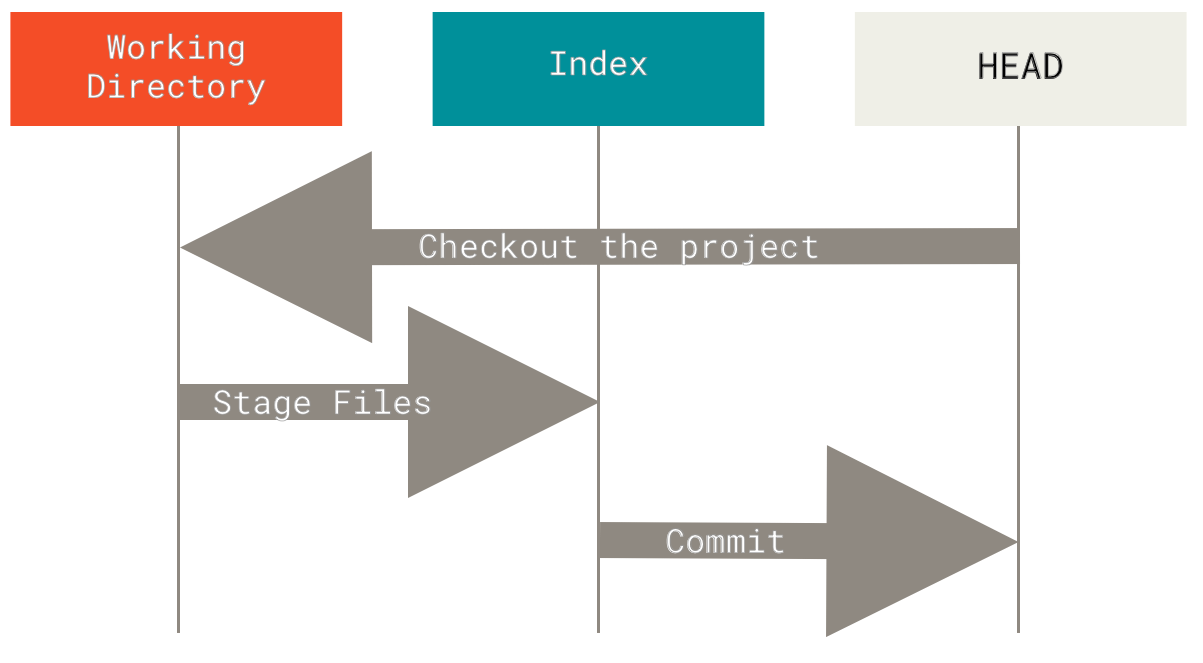
The classic Git workflow is to record project snapshots in successively better states by manipulating these three areas.
Let's visualize this process: suppose we enter a new directory with a single file. We'll call this the v1 version of the file and mark it in blue. Now we run git init, which creates a Git repository with a HEAD reference pointing to the yet-to-be-created master branch.
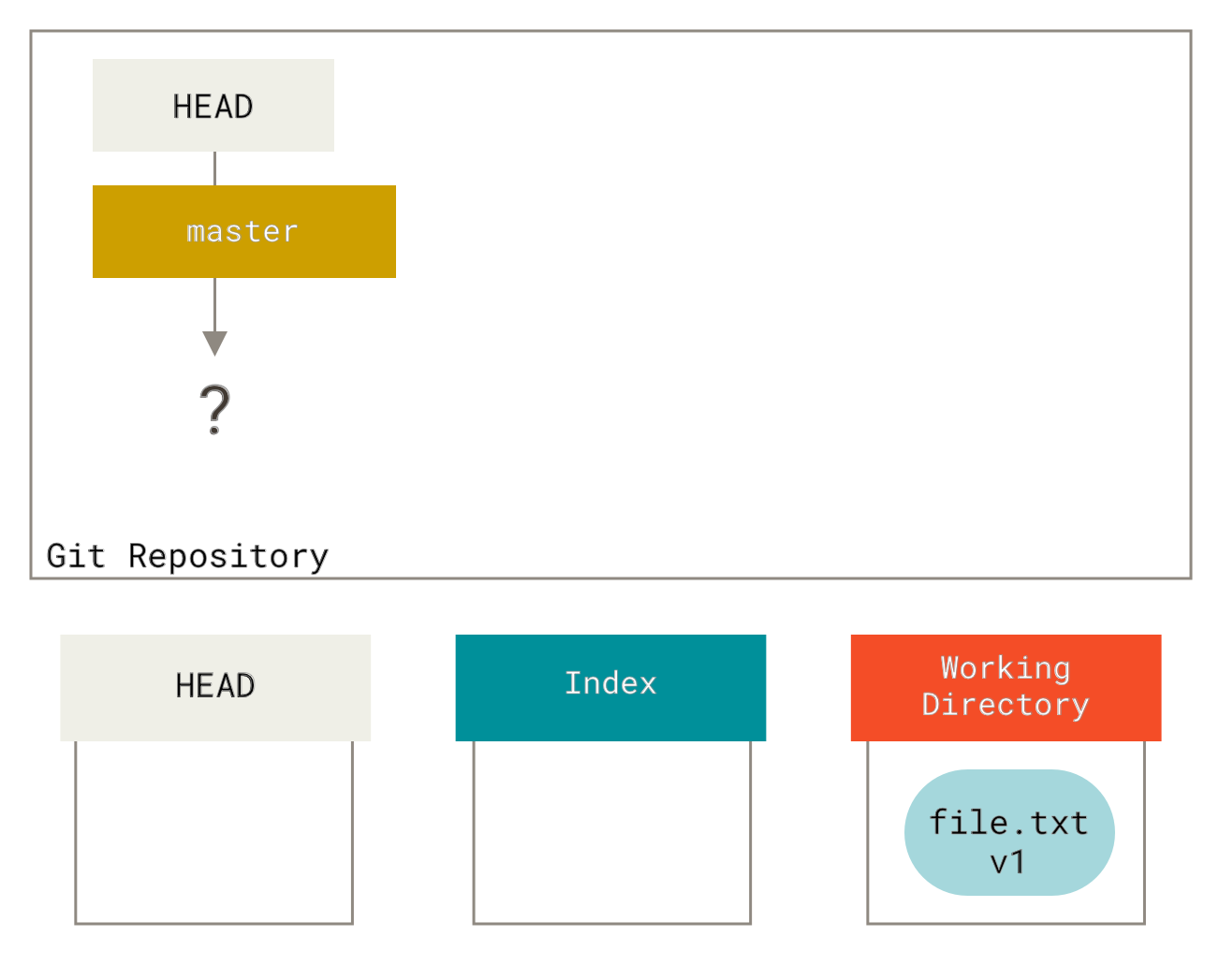
At this point, only the working directory has content.
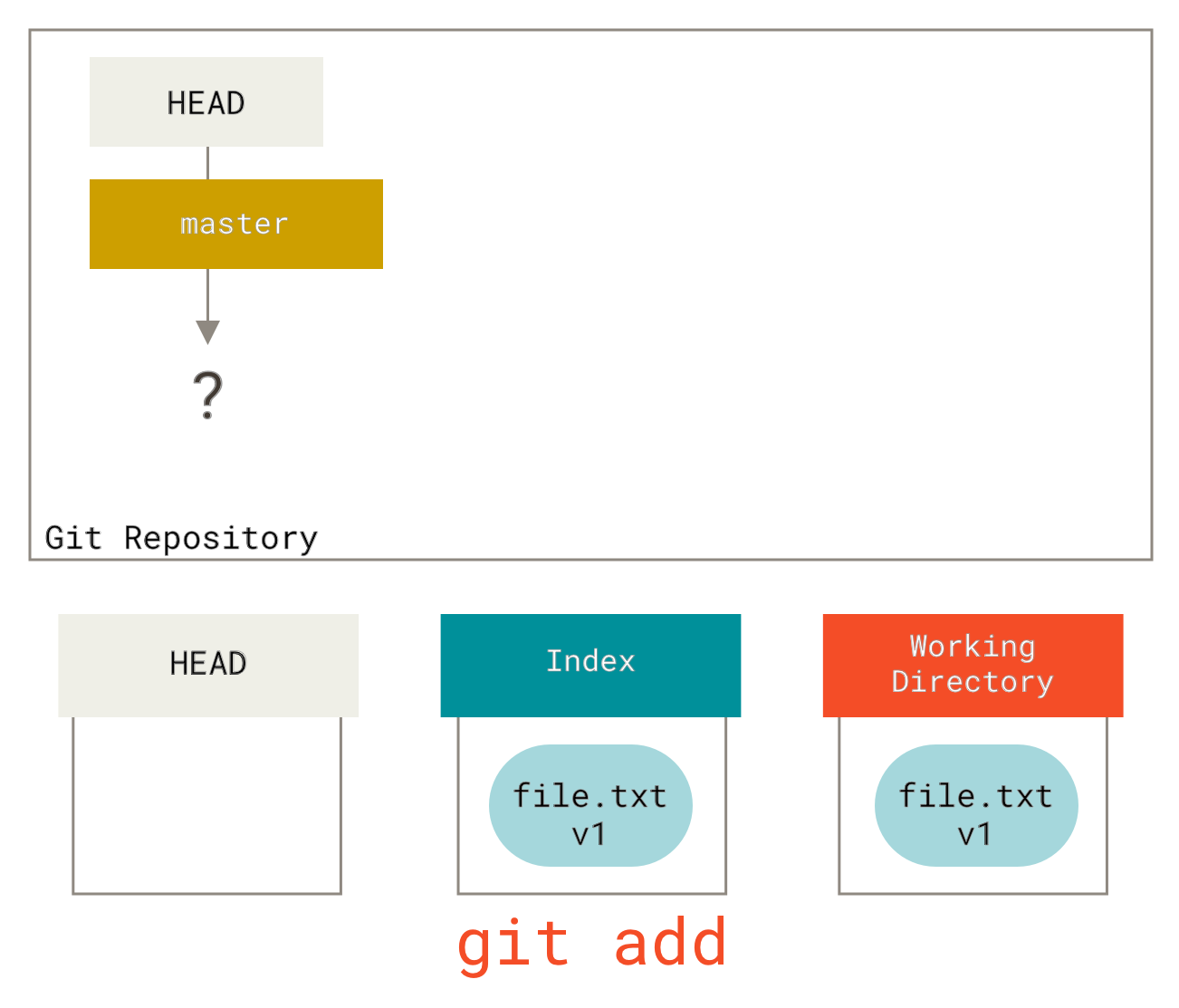
Now we want to commit this file, so we use git add to take the content from the working directory and copy it to the index.
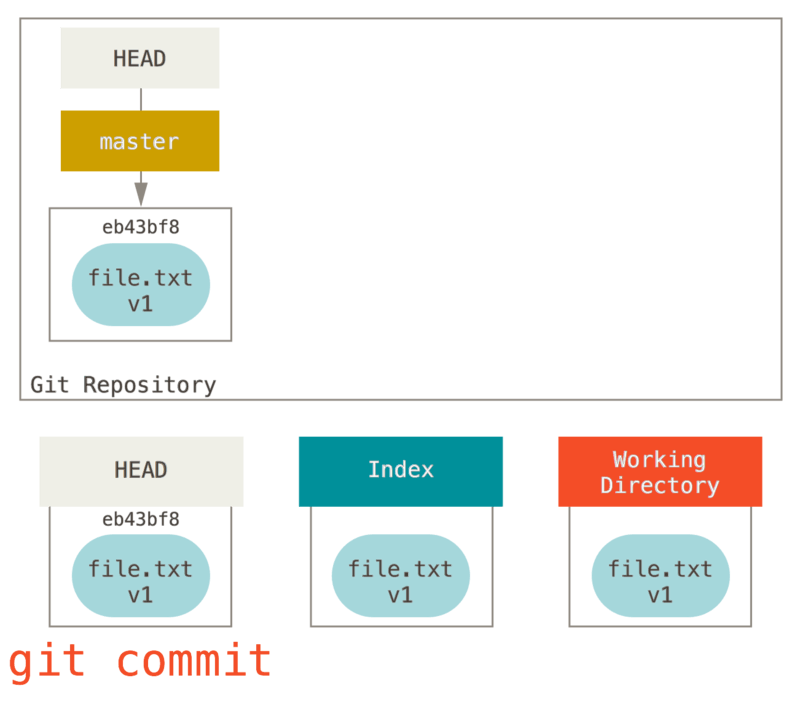
Then we run git commit, which takes the index contents and saves them as a permanent snapshot, creates a commit object pointing to that snapshot, and updates master to point to that commit.
If we now run git status, we see no changes because all three trees are identical.
Now we want to modify the file and commit it. We'll go through the same process; first we modify the file in our working directory. We'll call this the v2 version and mark it in red.
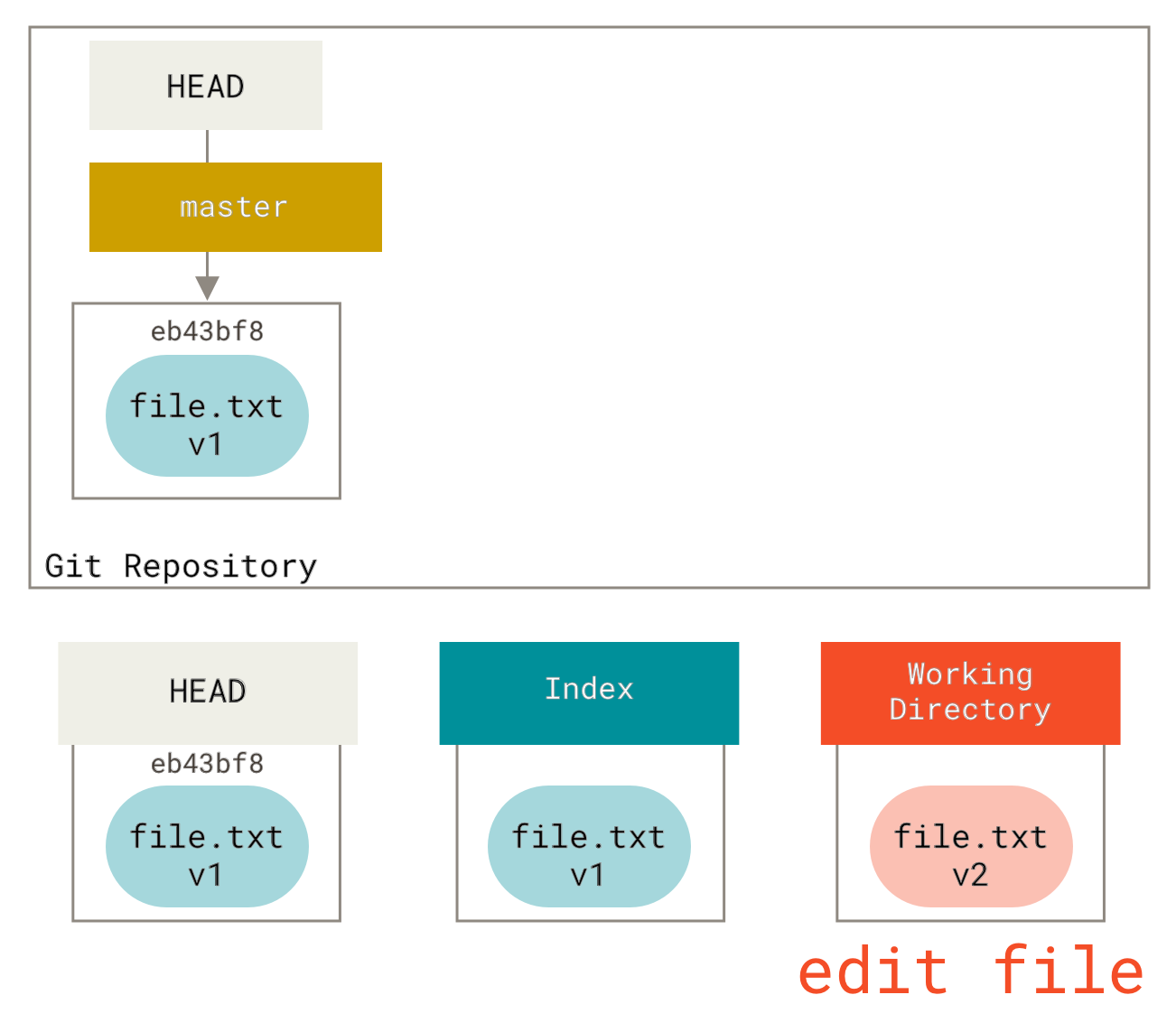
If we run git status now, we'll see the file under "Changes not staged for commit" marked in red, because it differs between the index and the working directory. Then we run git add to stage it into the index.
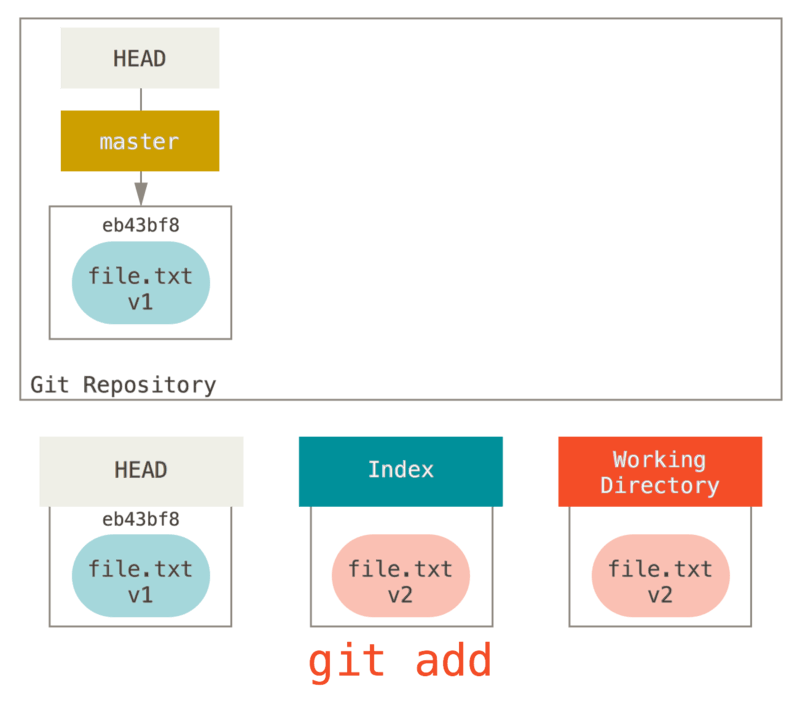
At this point, because the index and HEAD differ, running git status would show the file in green under "Changes to be committed" -- meaning the proposed next commit now differs from the last commit. Finally, we run git commit to finalize the commit.
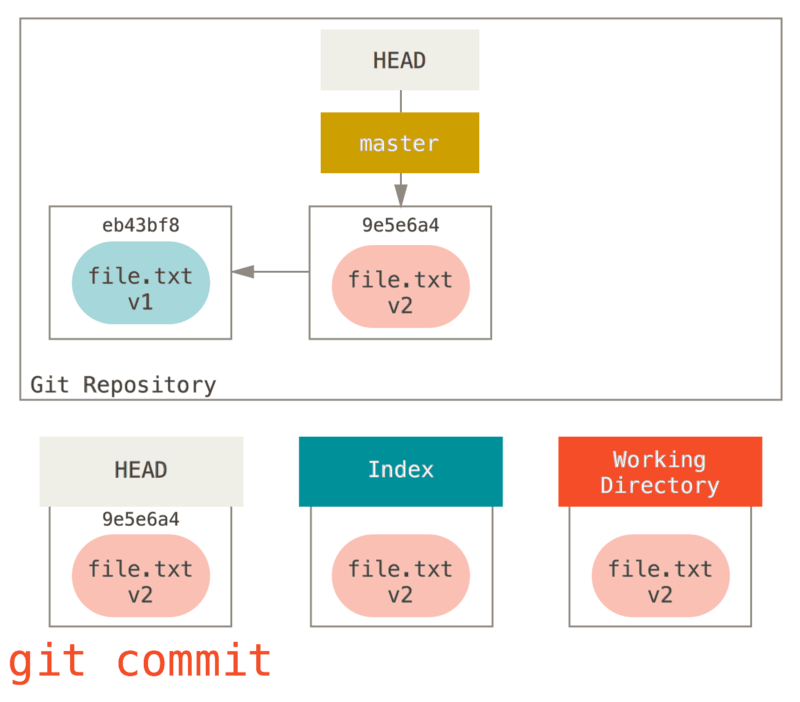
Now git status produces no output because all three trees are the same again.
Switching branches or cloning works similarly. When you check out a branch, it changes HEAD to point to the new branch reference, populates the index with the snapshot of that commit, and copies the index contents into the working directory.
# The Role of Reset
The reset command makes more sense when viewed in this context.
For the purposes of these examples, let's say we've modified file.txt again and committed it a third time. Now our history looks like this:
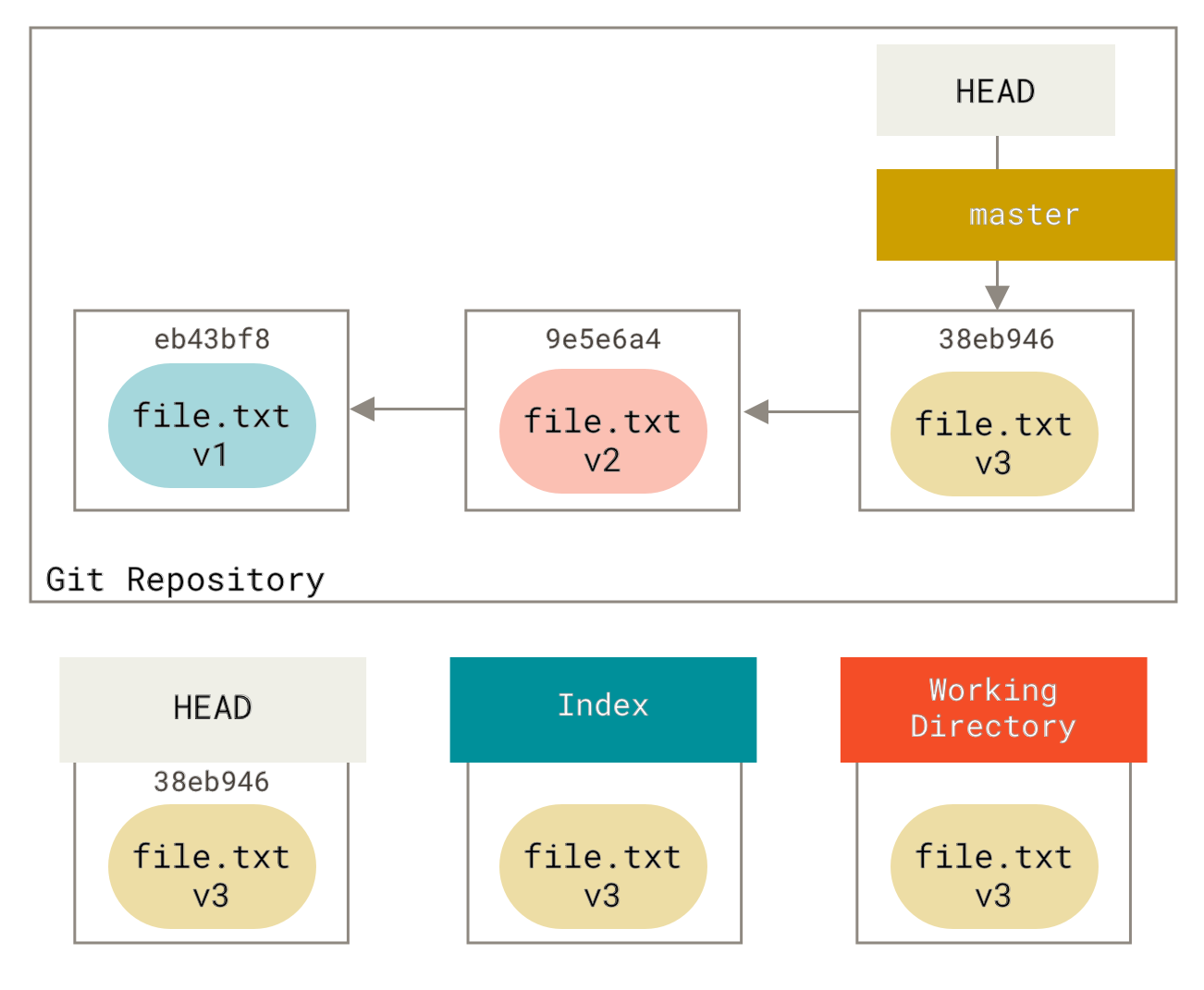
Let's walk through exactly what reset does. It manipulates these three trees in a simple, predictable way. It performs three basic operations.
# Step 1: Move HEAD
The first thing reset does is move what HEAD points to. This is different from changing HEAD itself (which is what checkout does); reset moves the branch that HEAD points to. If HEAD is set to the master branch (i.e., you're on master), running git reset 9e5e6a4 will make master point to 9e5e6a4.
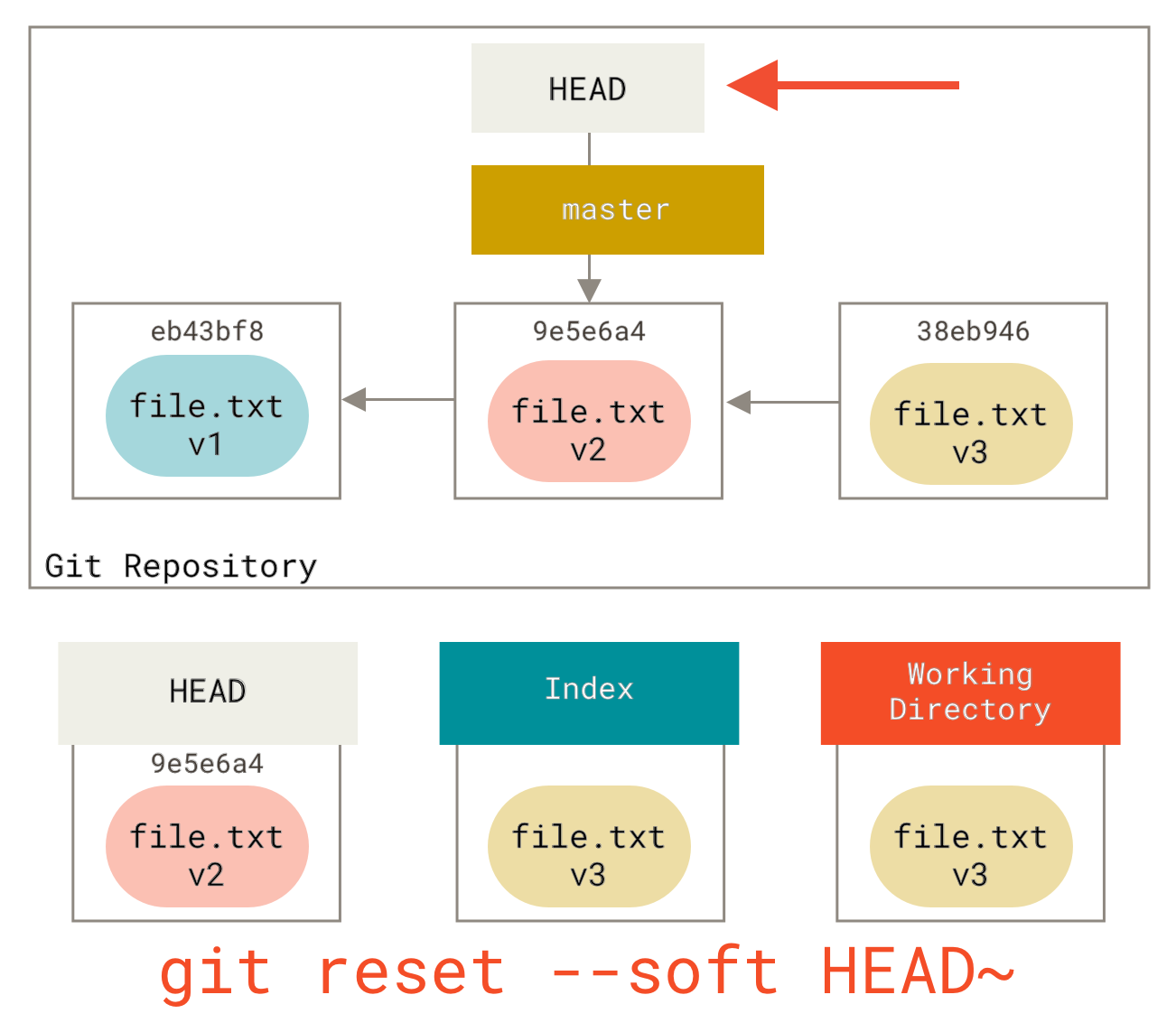
No matter what form of reset with a commit you invoke, this is the first thing it will try to do. With reset --soft, it will simply stop there.
Now look at the diagram and understand what happened: it essentially undid the last git commit command. When you run git commit, Git creates a new commit and moves the branch HEAD points to so it points to the new commit. When you reset back to HEAD~ (the parent of HEAD), you move the branch back to where it was without changing the index or working directory. You could now update the index and run git commit again to accomplish what git commit --amend would have done (see Changing the Last Commit (opens new window)).
# Step 2: Updating the Index (--mixed)
Note that if you run git status now, you'll see the difference between the new HEAD and the index in green.
Next, reset will update the index with the contents of the snapshot that HEAD now points to.
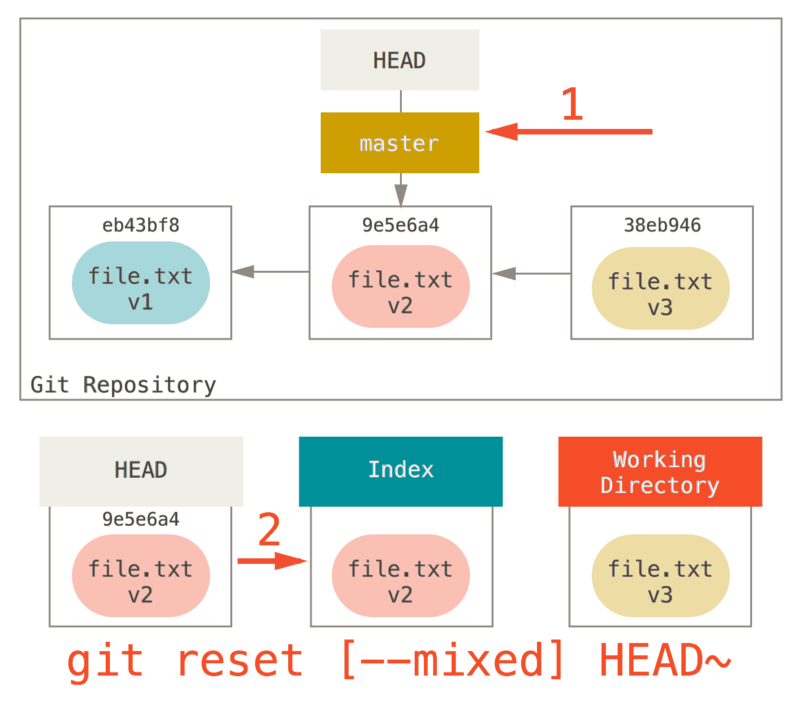
If you specify --mixed, reset stops at this point. This is also the default behavior, so if you specify no option (in this case just git reset HEAD~), this is where the command stops.
Now look at the diagram again: it still undid the last commit, but also unstaged everything. You rolled back to before all your git add and git commit commands.
# Step 3: Updating the Working Directory (--hard)
The third thing reset does is make the working directory look like the index. If you use the --hard option, it continues to this step.
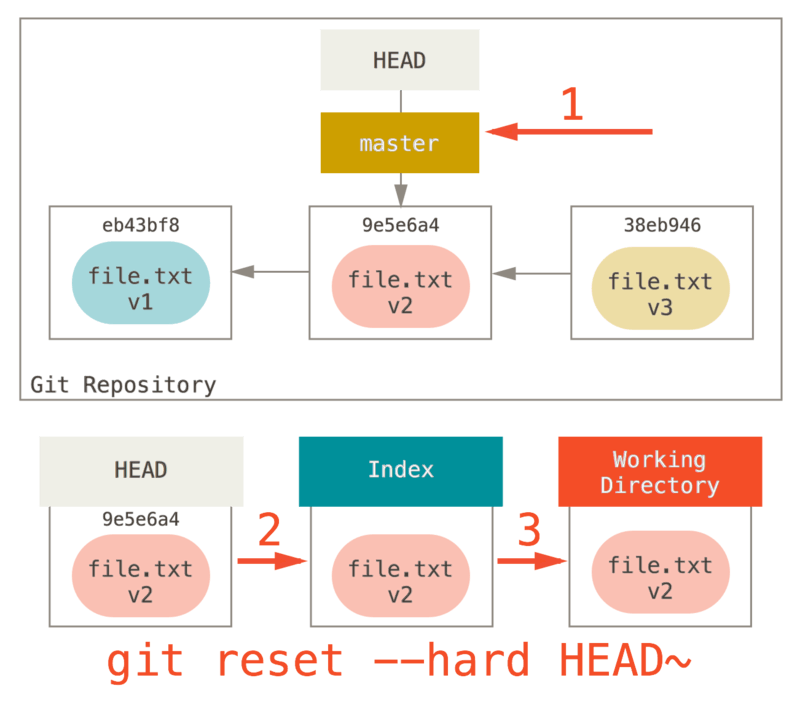
Now think about what just happened. You undid your last commit, the git add and git commit commands, and all the work you did in your working directory.
It's important to note that --hard is the only dangerous use of reset, and it is one of the very few cases where Git actually destroys data. Any other form of reset can be easily undone, but the --hard option cannot, because it forcibly overwrites files in the working directory. In this particular case, we still have the v3 version of the file in a commit in our Git database, and we could get it back through reflog. But if the file had not been committed, Git would still overwrite it, making it unrecoverable.
# Recap
The reset command overwrites these three trees in a specific order, stopping when you tell it to:
- Move the branch HEAD points to (stop here if
--soft) - Make the index look like HEAD (stop here unless
--hard) - Make the working directory look like the index
# Reset with a Path
The preceding covers the behavior of reset in its basic form, but you can also provide a path for it to act upon. If you specify a path, reset skips step 1 and limits the remainder of its actions to a specific file or set of files. This makes sense because HEAD is just a pointer and you can't point it at part of one commit and part of another. But the index and working directory can be partially updated, so reset proceeds with steps 2 and 3.
Now suppose we run git reset file.txt (which is shorthand for git reset --mixed HEAD file.txt, since you didn't specify a commit SHA-1 or branch, and you didn't specify --soft or --hard). It will:
- Move the branch HEAD points to (skipped)
- Make the index look like HEAD (stop here)
So it essentially just copies file.txt from HEAD to the index.
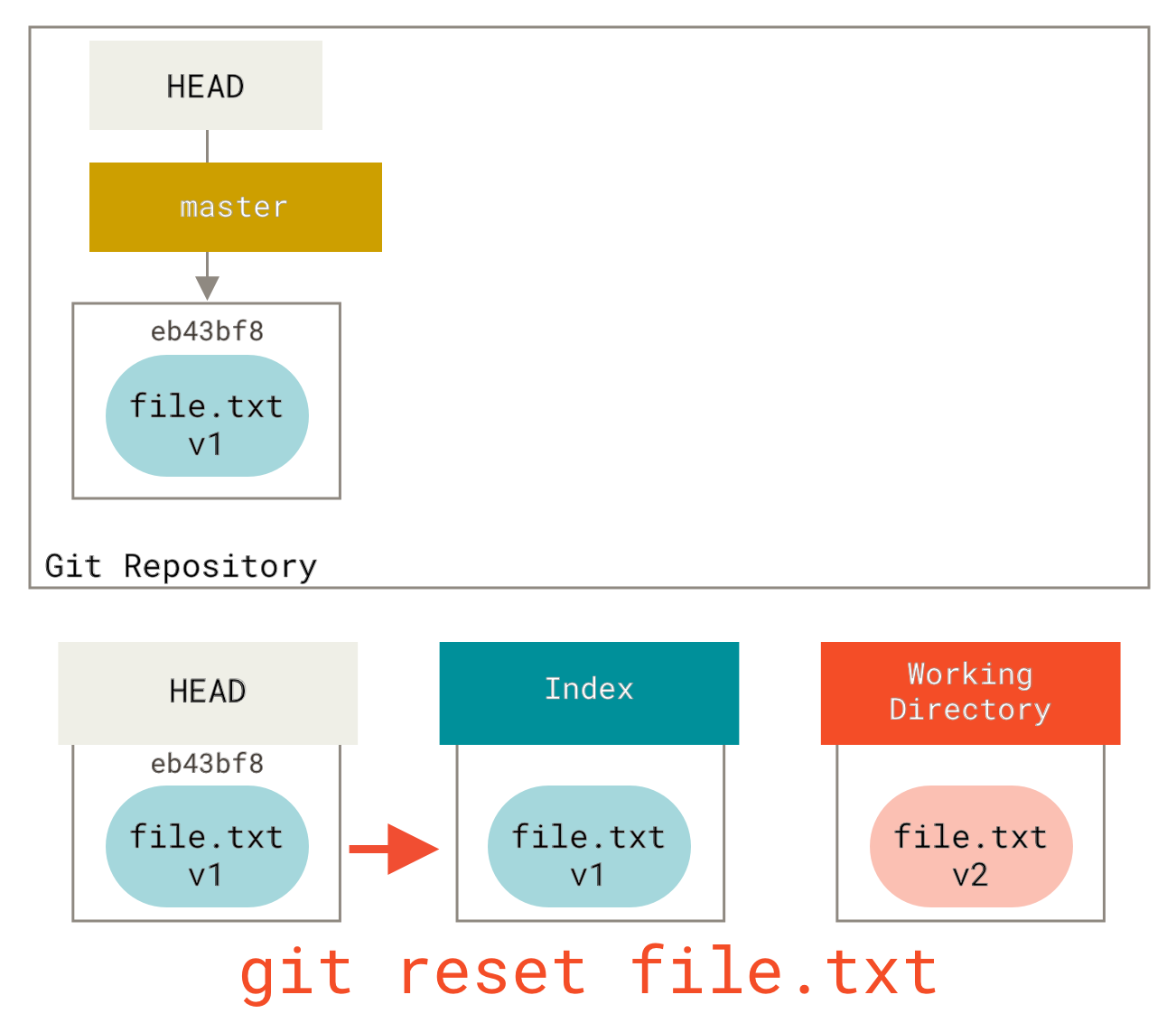
This has the practical effect of unstaging the file. If we look at the diagram of this command and think about what git add does, they are exact opposites.
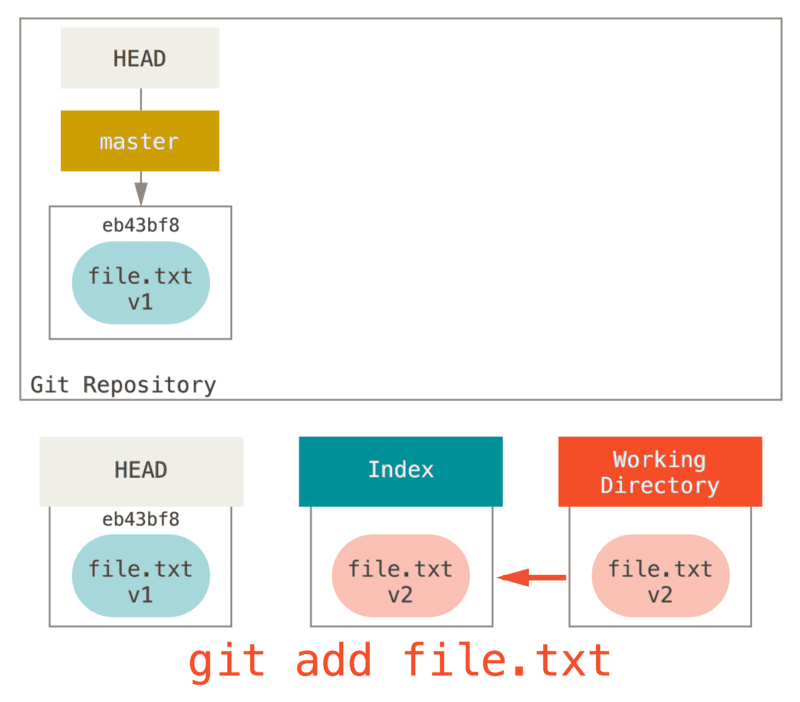
This is why the output of git status suggests running this command to unstage a file. (See Unstaging a Staged File (opens new window) for more.)
We could just as easily not let Git pull the data from HEAD, but instead from a specific commit by specifying it. We would just run something like git reset eb43bf file.txt.
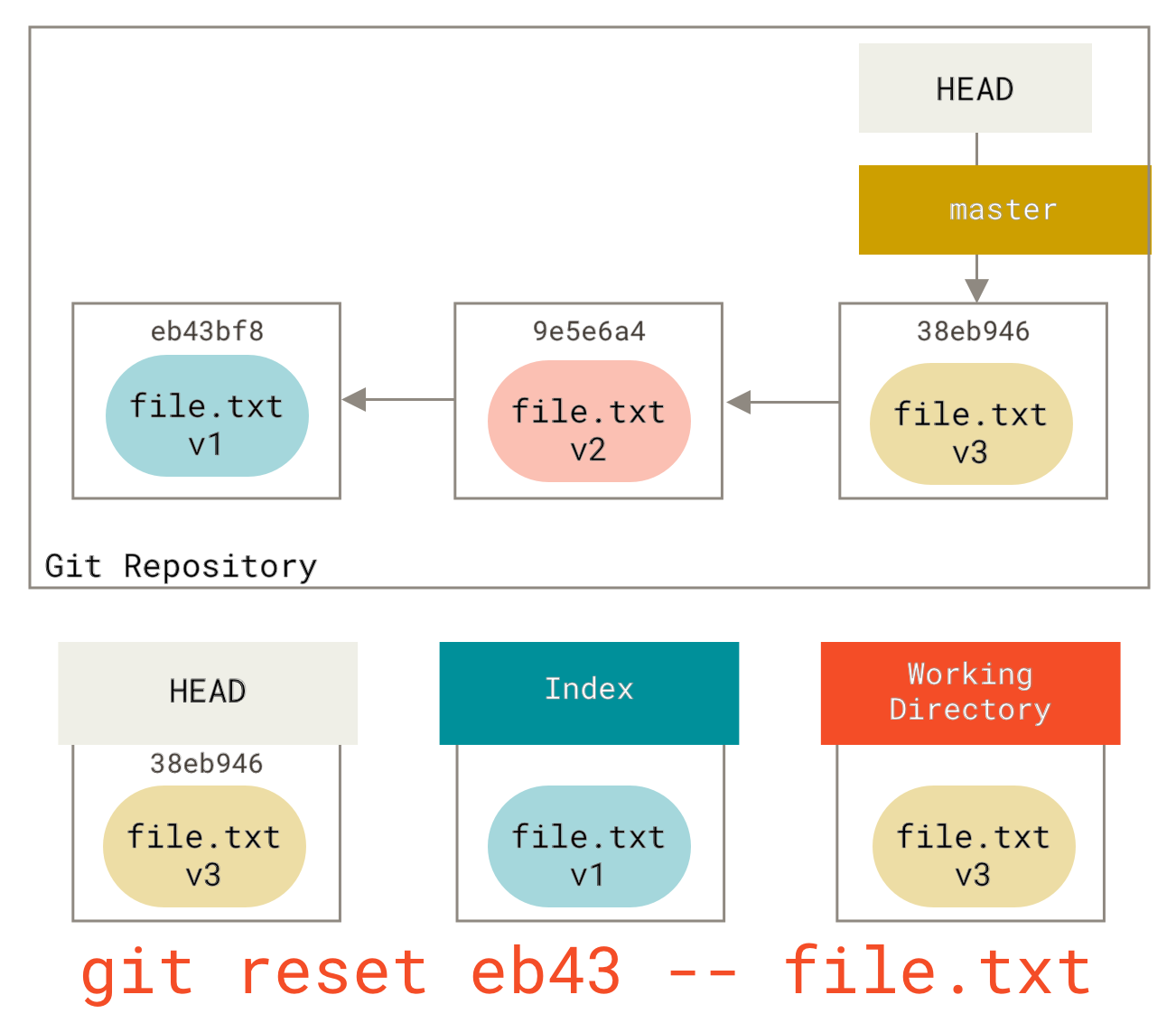
This effectively does the same thing as if we had reverted the file to v1 in the working directory, run git add on it, then reverted it back to v3 (without actually going through all those steps). If we run git commit now, it will record a change that reverts the file to v1, even though we never actually had it in our working directory again.
Also like git add, reset accepts a --patch option to unstage content on a hunk-by-hunk basis. You can selectively unstage or revert content this way.
# Squashing
Let's look at how to use this new capability to do something interesting -- squashing commits.
Suppose you have a series of commits with messages like "oops," "WIP," and "forgot this file." You can use reset to quickly and easily squash them into a single commit to show how smart you are. (Squashing Commits (opens new window) shows another way, but in this example reset is simpler.)
Suppose you have a project where the first commit has one file, the second commit adds a new file and modifies the first, and the third commit modifies the first file again. The second commit was work in progress, so you want to squash it.
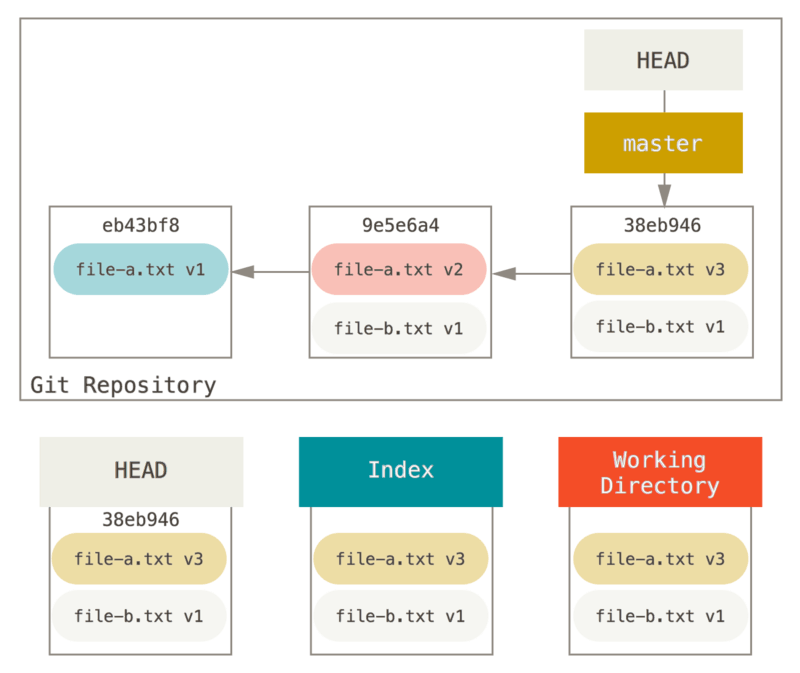
You can run git reset --soft HEAD~2 to move the HEAD branch back to an older commit (the most recent commit you want to keep):
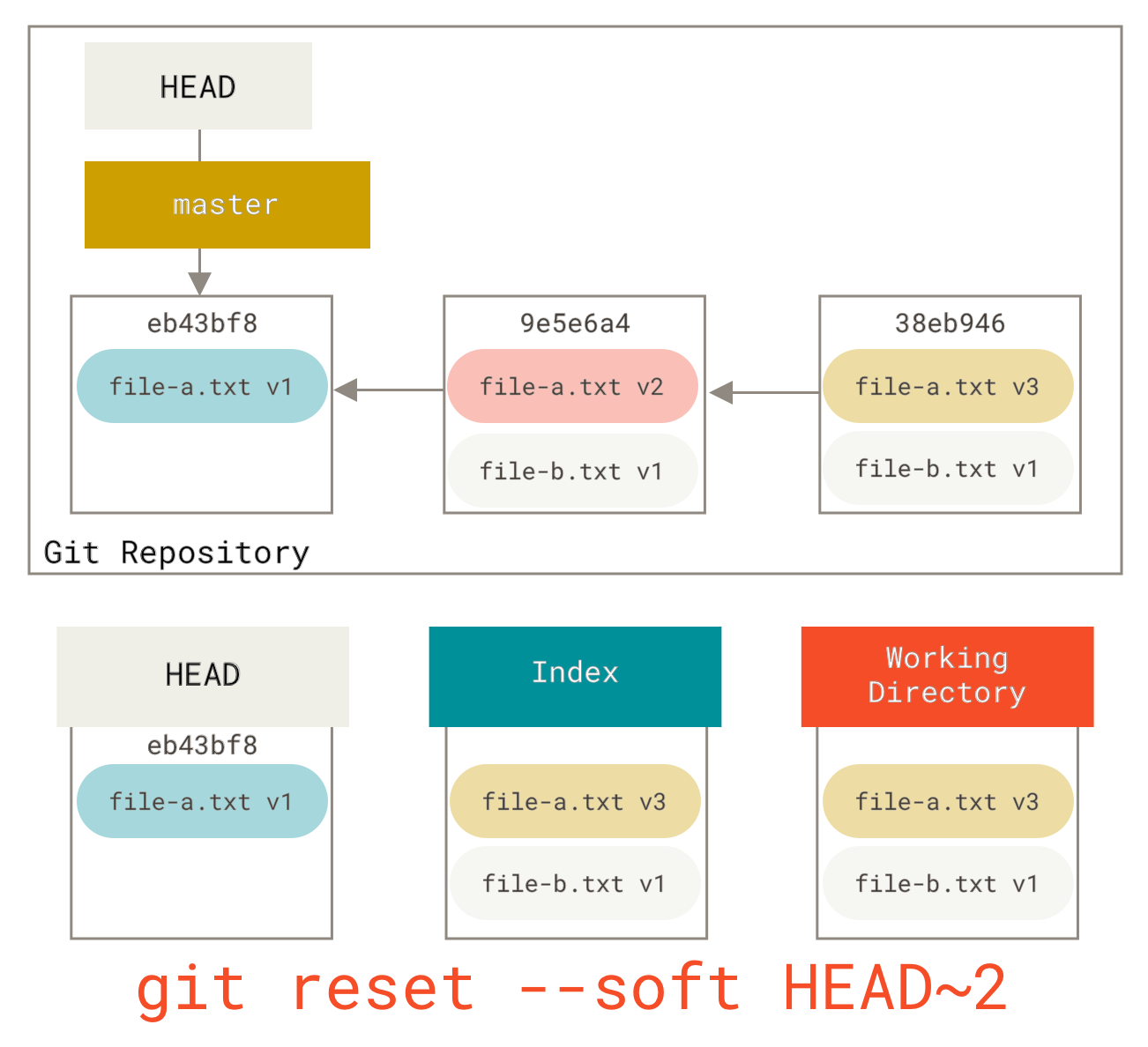
Then simply run git commit again:
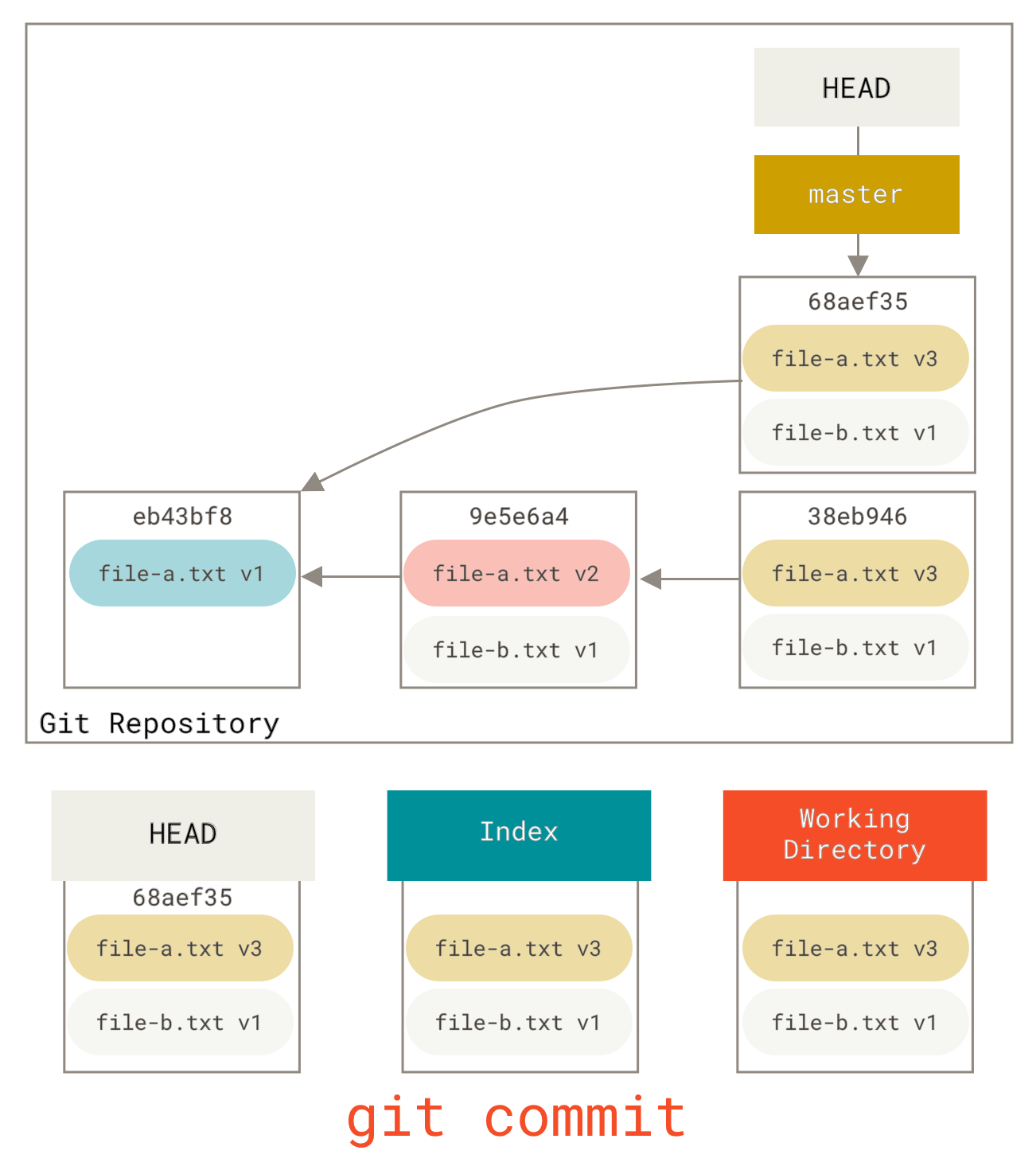
Now you can see that your reachable history (the history you would push) now looks like you had one commit with file-a.txt v1, then a second that both modified file-a.txt to v3 and added file-b.txt. The commit with the v2 version of the file is no longer in the history.
# Checkout
Finally, you may wonder what the difference is between checkout and reset. Like reset, checkout manipulates the three trees, but it does so slightly differently depending on whether you give the command a file path or not.
# Without Paths
Running git checkout [branch] is quite similar to running git reset --hard [branch] in that it updates all three trees to look like [branch], but there are two important differences.
First, unlike reset --hard, checkout is safe for the working directory. It checks to make sure it's not blowing away files that have changes. Actually, it's a bit smarter -- it tries to do a trivial merge in the working directory, so all files you haven't modified will be updated. reset --hard, on the other hand, simply replaces everything without checking.
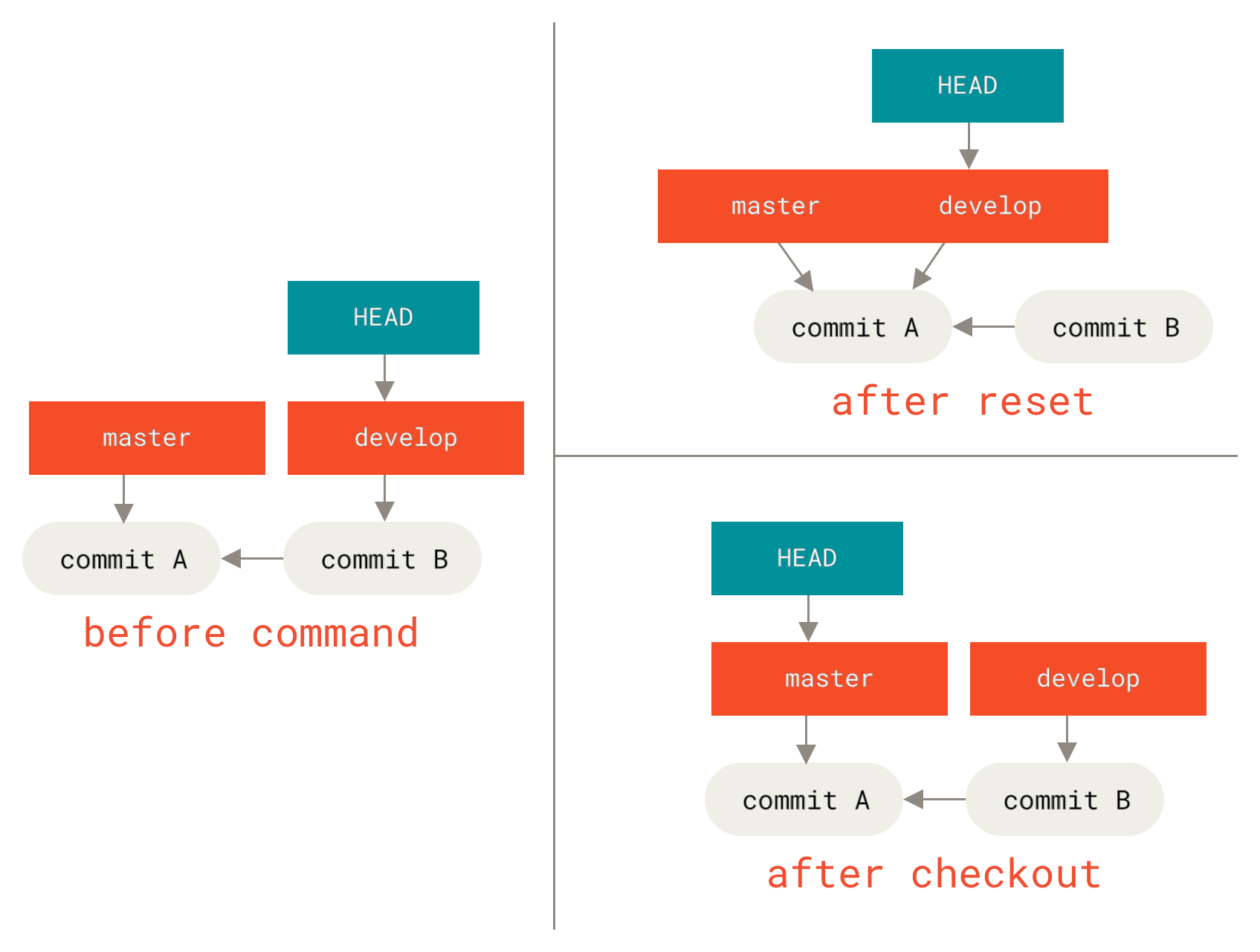
The second important difference is how checkout updates HEAD. reset moves the branch that HEAD points to, while checkout moves HEAD itself to point to another branch.
For example, say we have master and develop branches pointing to different commits, and we're currently on develop (so HEAD points to it). If we run git reset master, develop itself will now point to the same commit as master. If instead we run git checkout master, develop won't move -- HEAD itself will move. HEAD will now point to master.
So in both cases we're moving HEAD to point to commit A, but how we do so is very different. reset moves the branch HEAD points to, while checkout moves HEAD itself.
# With Paths
Running checkout with a file path, like reset, does not move HEAD. It's just like git reset [branch] file in that it updates the index with the file from that commit, but it also overwrites the file in the working directory. It would be exactly like git reset --hard [branch] file (if reset would let you run that) -- it's not safe for the working directory, and it does not move HEAD.
Also, like git reset and git add, checkout accepts a --patch option to let you selectively revert file content on a hunk-by-hunk basis.
# Summary
Hopefully now you understand and feel comfortable with the reset command. You may still be confused about exactly how it differs from checkout -- after all, it's hard to remember all the rules for different invocations.
The table below summarizes how each command affects the trees. The "HEAD" column reads "REF" if that command moves the reference (branch) that HEAD points to, and "HEAD" if it moves HEAD itself. Pay particular attention to the WD Safe? column -- if it says NO, take a moment to think before running that command.
| HEAD | Index | Workdir | WD Safe? | |
|---|---|---|---|---|
| Commit Level | ||||
reset --soft [commit] | REF | NO | NO | YES |
reset [commit] | REF | YES | NO | YES |
reset --hard [commit] | REF | YES | YES | NO |
checkout <commit> | HEAD | YES | YES | YES |
| File Level | ||||
reset [commit] <paths> | NO | YES | NO | YES |
checkout [commit] <paths> | NO | YES | YES | NO |