
 Common Git Command Cheat Sheet
# Common Git Command Cheat Sheet
Generally speaking, for daily use you only need to remember the 6 commands shown in the diagram below. However, to use Git proficiently, you may need to memorize 60 to 100 commands.
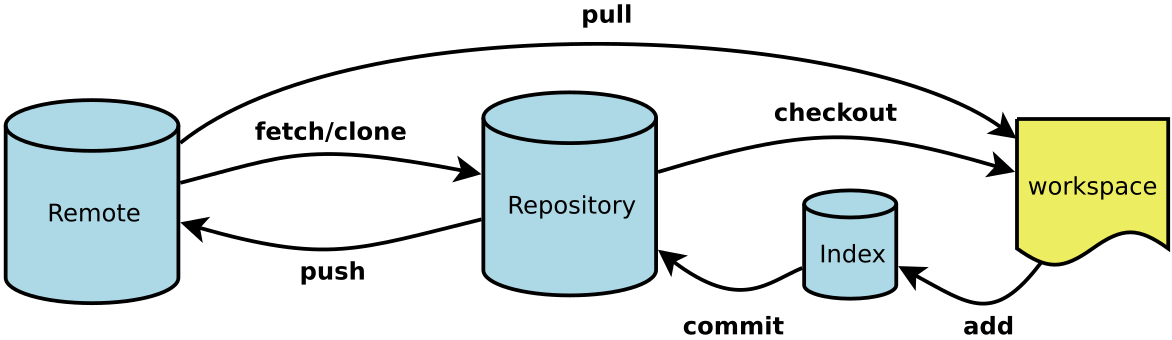
Below is a cheat sheet of commonly used Git commands. Here are the translations of a few key terms:
- Workspace: Working Directory
- Index / Stage: Staging Area
- Repository: Local Repository
- Remote: Remote Repository
# 1. Creating a New Repository
# Initialize a new Git repository in the current directory
$ git init

# Create a new directory and initialize it as a Git repository
$ git init [project-name]

# Download a project and its entire commit history
$ git clone [url]
2
3
4
5
6
7
8
# 2. Configuration
The Git configuration file is .gitconfig, which can be located in the user's home directory (global configuration) or in the project directory (project-specific configuration).
# Display current Git configuration
$ git config --list

# Edit the Git configuration file
$ git config -e [--global]

# Set user information for commits
$ git config [--global] user.name "[name]"
$ git config [--global] user.email "[email address]"
2
3
4
5
6
7
8
9
# 3. Adding / Removing Files
# Add specified files to the staging area
$ git add [file1] [file2] ...

# Add a specified directory to the staging area, including subdirectories
$ git add [dir]

# Add all files in the current directory to the staging area
$ git add .

# Prompt for confirmation before adding each change
# This allows staging multiple changes to the same file in separate commits
$ git add -p

# Delete files from the working directory and stage the deletion
$ git rm [file1] [file2] ...

# Stop tracking a specified file but keep it in the working directory
$ git rm --cached [file]

# Rename a file and stage the rename
$ git mv [file-original] [file-renamed]
2
3
4
5
6
7
8
9
10
11
12
13
14
15
16
17
18
19
20
21
# 4. Committing Code
# Commit staged changes to the repository
$ git commit -m [message]

# Commit specified staged files to the repository
$ git commit [file1] [file2] ... -m [message]

# Commit all changes in the working directory since the last commit directly to the repository
$ git commit -a

# Show all diff information during the commit
$ git commit -v

# Replace the last commit with a new one
# If no new changes exist, this simply amends the last commit message
$ git commit --amend -m [message]

# Redo the last commit, including new changes to specified files
$ git commit --amend [file1] [file2] ...
2
3
4
5
6
7
8
9
10
11
12
13
14
15
16
17
18
# 5. Branches
# List all local branches
$ git branch

# List all remote branches
$ git branch -r

# List all local and remote branches
$ git branch -a

# Create a new branch but stay on the current branch
$ git branch [branch-name]

# Create a new branch and switch to it
$ git checkout -b [branch]

# Create a new branch pointing to a specified commit
$ git branch [branch] [commit]

# Create a new branch and set up tracking with a specified remote branch
$ git branch --track [branch] [remote-branch]

# Switch to a specified branch and update the working directory
$ git checkout [branch-name]

# Switch to the previous branch
$ git checkout -

# Set up tracking between an existing branch and a specified remote branch
$ git branch --set-upstream [branch] [remote-branch]

# Merge a specified branch into the current branch
$ git merge [branch]

# Cherry-pick a commit and merge it into the current branch
$ git cherry-pick [commit]

# Delete a branch
$ git branch -d [branch-name]

# Delete a remote branch
$ git push origin --delete [branch-name]
$ git branch -dr [remote/branch]
2
3
4
5
6
7
8
9
10
11
12
13
14
15
16
17
18
19
20
21
22
23
24
25
26
27
28
29
30
31
32
33
34
35
36
37
38
39
40
41
42
# 6. Tags
# List all tags
$ git tag

# Create a new tag at the current commit
$ git tag [tag]

# Create a new tag at a specified commit
$ git tag [tag] [commit]

# Delete a local tag
$ git tag -d [tag]

# Delete a remote tag
$ git push origin :refs/tags/[tagName]

# Show tag information
$ git show [tag]

# Push a specified tag to the remote
$ git push [remote] [tag]

# Push all tags to the remote
$ git push [remote] --tags

# Create a new branch pointing to a specific tag
$ git checkout -b [branch] [tag]
2
3
4
5
6
7
8
9
10
11
12
13
14
15
16
17
18
19
20
21
22
23
24
25
26
# 7. Viewing Information
# Show files with changes
$ git status

# Show the commit history of the current branch
$ git log

# Show commit history along with files changed in each commit
$ git log --stat

# Search commit history by keyword
$ git log -S [keyword]

# Show all changes after a specific commit, one commit per line
$ git log [tag] HEAD --pretty=format:%s

# Show all changes after a specific commit whose commit messages match a search criteria
$ git log [tag] HEAD --grep feature

# Show the version history of a file, including renames
$ git log --follow [file]
$ git whatchanged [file]

# Show the diff for each change related to a specified file
$ git log -p [file]

# Show the last 5 commits
$ git log -5 --pretty --oneline

# Show all users who have committed, sorted by number of commits
$ git shortlog -sn

# Show who modified a specified file, and when
$ git blame [file]

# Show the difference between the staging area and the working directory
$ git diff

# Show the difference between the staging area and the last commit
$ git diff --cached [file]

# Show the difference between the working directory and the latest commit of the current branch
$ git diff HEAD

# Show the difference between two commits
$ git diff [first-branch]...[second-branch]

# Show how many lines of code you wrote today
$ git diff --shortstat "@{0 day ago}"

# Show the metadata and content changes of a specific commit
$ git show [commit]

# Show files changed in a specific commit
$ git show --name-only [commit]

# Show the content of a specific file at a specific commit
$ git show [commit]:[filename]

# Show the recent commits of the current branch
$ git reflog
2
3
4
5
6
7
8
9
10
11
12
13
14
15
16
17
18
19
20
21
22
23
24
25
26
27
28
29
30
31
32
33
34
35
36
37
38
39
40
41
42
43
44
45
46
47
48
49
50
51
52
53
54
55
56
57
58
59
60
# 8. Remote Synchronization
# Download all changes from the remote repository
$ git fetch [remote]

# Show all remote repositories
$ git remote -v

# Show information about a specific remote repository
$ git remote show [remote]

# Add a new remote repository with a shortname
$ git remote add [shortname] [url]

# Pull changes from a remote repository and merge with a local branch
$ git pull [remote] [branch]

# Push a specified local branch to a remote repository
$ git push [remote] [branch]

# Force push the current branch to the remote repository, even if there are conflicts
$ git push [remote] --force

# Push all branches to the remote repository
$ git push [remote] --all
2
3
4
5
6
7
8
9
10
11
12
13
14
15
16
17
18
19
20
21
22
23
# 9. Undoing Changes
# Restore a specified file from the staging area to the working directory
$ git checkout [file]

# Restore a specified file from a specific commit to both the staging area and working directory
$ git checkout [commit] [file]

# Restore all files from the staging area to the working directory
$ git checkout .

# Reset a specified file in the staging area to match the last commit, but leave the working directory unchanged
$ git reset [file]

# Reset both the staging area and working directory to match the last commit
$ git reset --hard

# Reset the current branch pointer to a specified commit, also reset the staging area, but leave the working directory unchanged
$ git reset [commit]

# Reset the HEAD of the current branch to a specified commit, and reset both the staging area and working directory to match
$ git reset --hard [commit]

# Reset the current HEAD to a specified commit, but keep the staging area and working directory unchanged
$ git reset --keep [commit]

# Create a new commit that reverts a specified commit
# All changes from the specified commit will be undone and applied to the current branch
$ git revert [commit]

# Temporarily remove uncommitted changes, to be reapplied later
$ git stash
$ git stash pop
2
3
4
5
6
7
8
9
10
11
12
13
14
15
16
17
18
19
20
21
22
23
24
25
26
27
28
29
30
31
# 10. Common Operation Combinations
# 1. Rename a Local and Remote Branch
git branch -m old_branch new_branch # Rename the local branch
git push origin :old_branch # Delete the old remote branch (note the colon before the branch name)
git push --set-upstream origin new_branch # Push the new branch and set up tracking
2
3
Related articles:
How to Undo Git Operations (opens new window)
git cherry-pick Tutorial (opens new window) - Copy selected commits from one branch to another (compared to rebase, which allows selecting specific commits).
Command cheat sheet source: https://www.ruanyifeng.com/blog/2015/12/git-cheat-sheet.html