
 Git Branches - Remote Branches
# Git Branches - Remote Branches
Remote references are references (pointers) to your remote repositories, including branches, tags, and more.
Remote branches are essentially pointers that point to remote URLs.
# Listing Remote References and Information
git ls-remote <remote> # Full list of remote references
git remote show <remote> # More information about remote branches
2
The above two commands are rarely used. A more common approach is to use remote-tracking branches.
# Remote-Tracking Branches
Remote-tracking branches are references to the state of remote branches. They are local references that you cannot move. Once you make any network communication, Git moves them to accurately reflect the state of the remote repository. Think of them as bookmarks to remind you where branches in the remote repository were the last time you connected.
They are named in the format <remote>/<branch>. For example, if you want to check the state of the master branch the last time you communicated with the origin remote, you can look at the origin/master branch. If you are collaborating with a partner on an issue and they pushed an iss53 branch, you may have your own local iss53 branch, but the branch on the server would be represented as origin/iss53.
This can be a bit confusing, so let's look at an example. Suppose you have a Git server at git.ourcompany.com. When you clone from here, Git's clone command automatically names it origin, pulls down all its data, creates a pointer to its master branch, and names it locally as origin/master. Git also gives you your own local master branch starting at the same place as origin's master branch, so you have a foundation to work from.
Note: A repository cloned from a remote has a remote-tracking branch called origin/master and a local master branch.
Note: "origin" has no special meaning. The remote repository name "origin" has no special meaning in Git, just as "master" has no special significance. "master" is just the default starting branch name when you run
git init, simply because it is widely used. "origin" is the default remote repository name when you rungit clone. If you rungit clone -o booyah, then your default remote branch name will bebooyah/master.
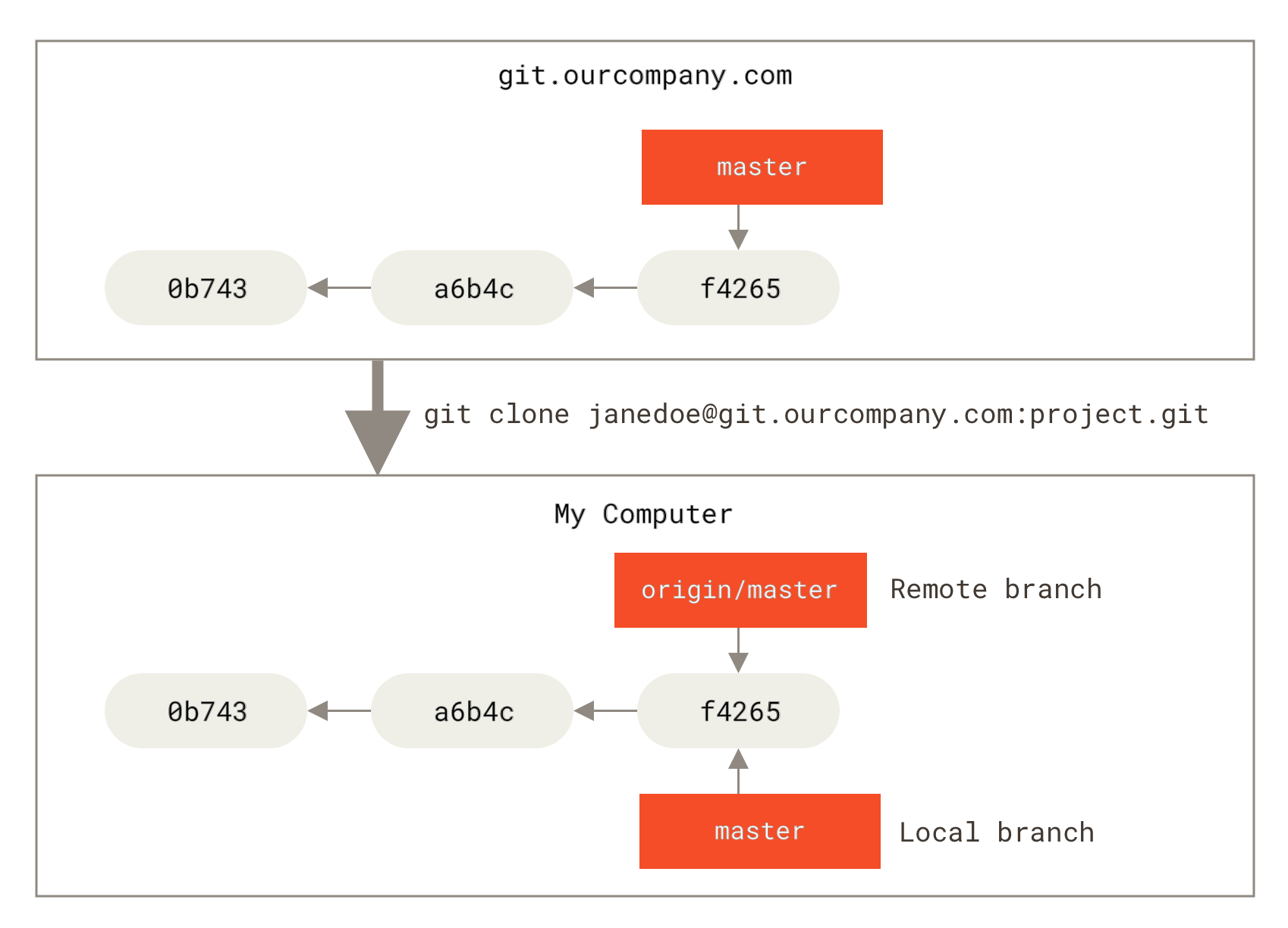
Figure 1. Server and local repositories after cloning
If you do some work on your local master branch, and in the meantime, someone else pushes to git.ourcompany.com and updates its master branch, then your histories have moved in different directions. As long as you stay out of contact with the origin server (and don't pull data), your origin/master pointer will not move.
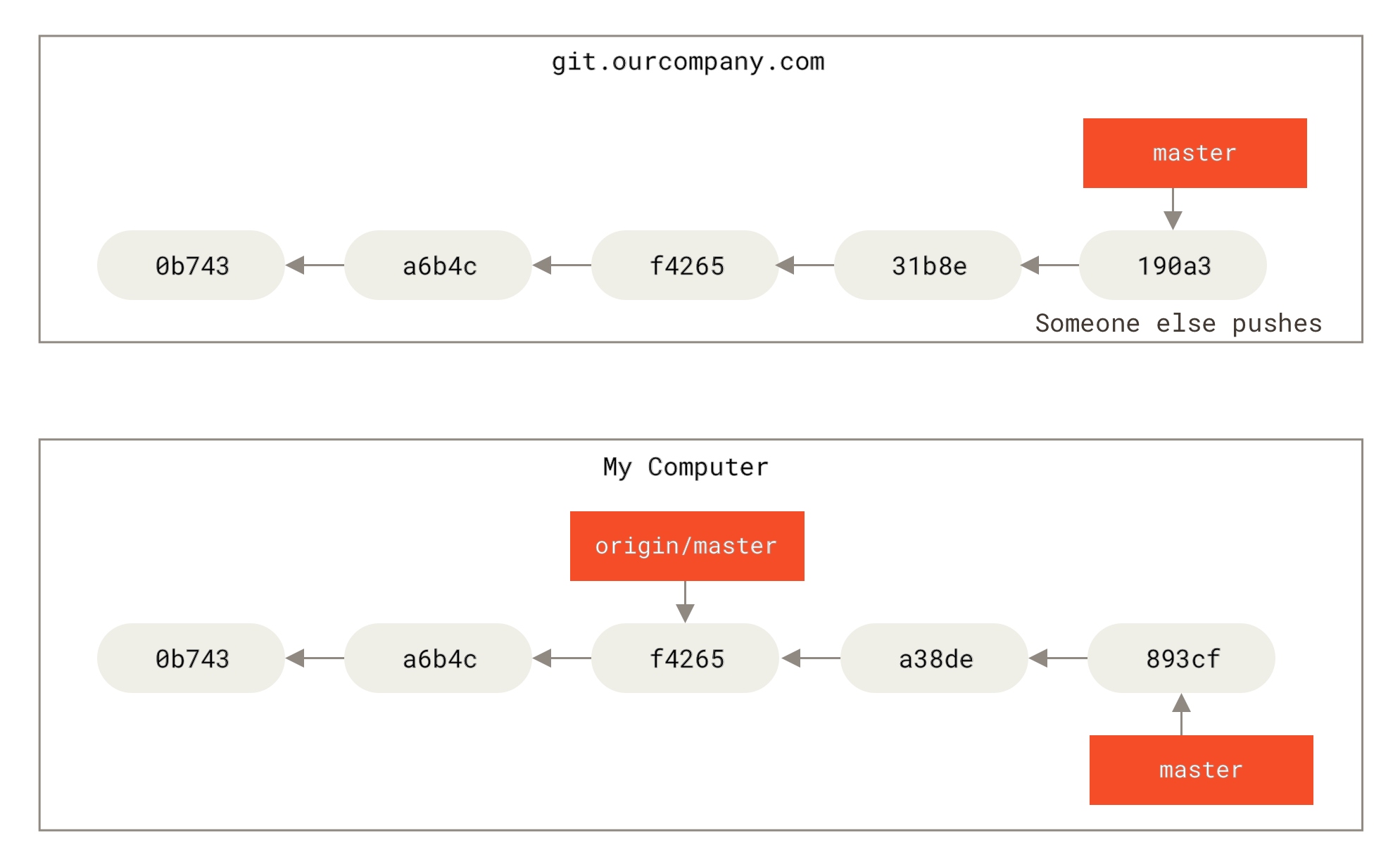
Figure 2. Local and remote work can diverge
To synchronize with a given remote repository, run git fetch <remote> (in this case, git fetch origin). This command looks up which server "origin" is (in this case git.ourcompany.com), fetches data from it that you don't yet have, and updates your local database, moving your origin/master pointer to its new, more up-to-date position.
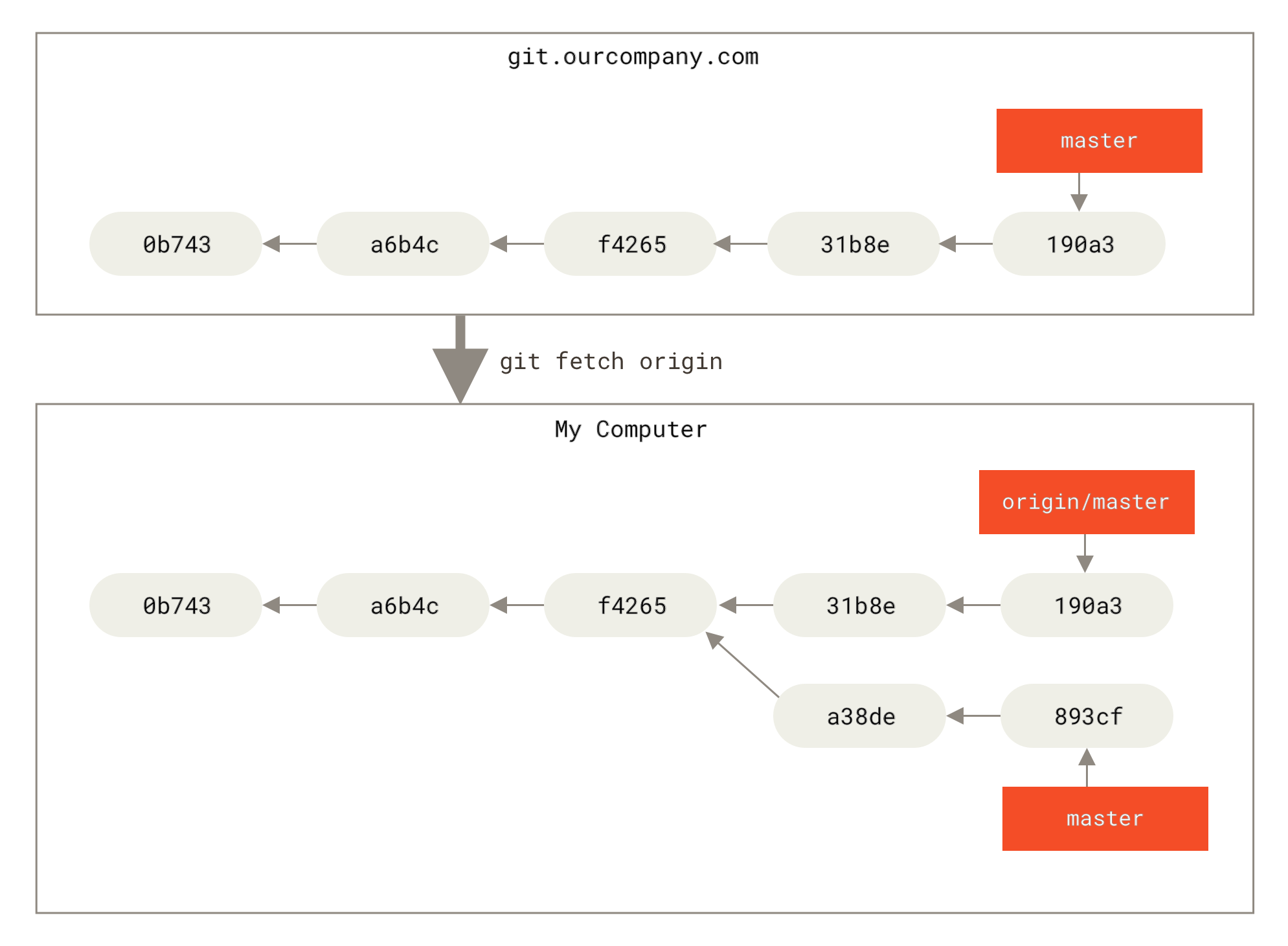
Figure 3. git fetch updates your remote-tracking branches
Note: The local master branch may diverge from the remote-tracking branch origin/master.
To demonstrate having multiple remote repositories and remote branches, let's assume you have another internal Git server used only by one of your agile development teams. This server is at git.team1.ourcompany.com. You can add it as a new remote reference using git remote add, which we will cover in detail in Git Basics (opens new window). Name this remote teamone, which serves as a shorthand for the full URL. A remote repository name is essentially a shorthand for the remote URL.
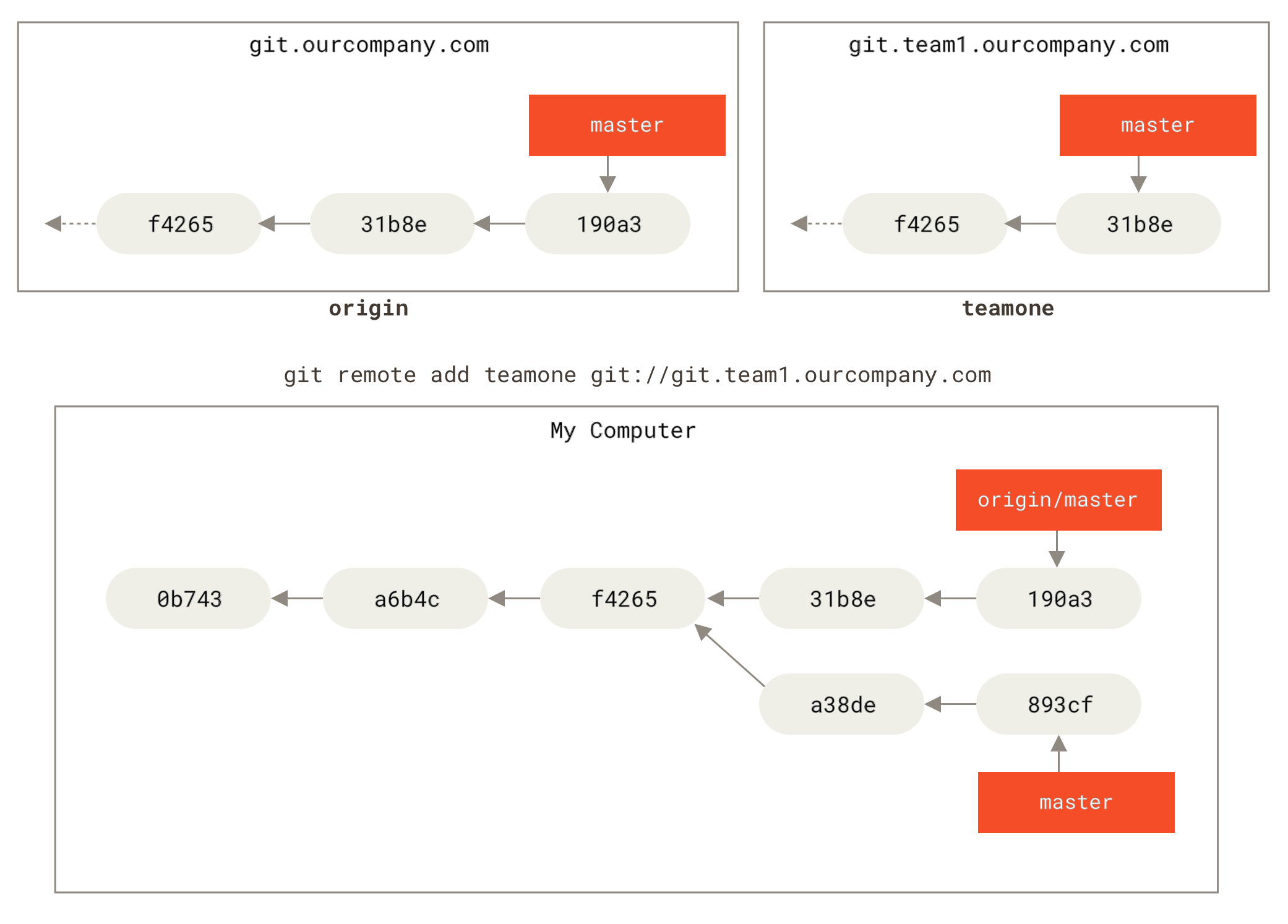
Figure 4. Adding another remote repository
Now you can run git fetch teamone to fetch data that remote repository teamone has but you don't have locally. Because that server has a subset of the data your origin server has, Git doesn't fetch any data but instead sets the remote-tracking branch teamone/master to point to teamone's master branch.
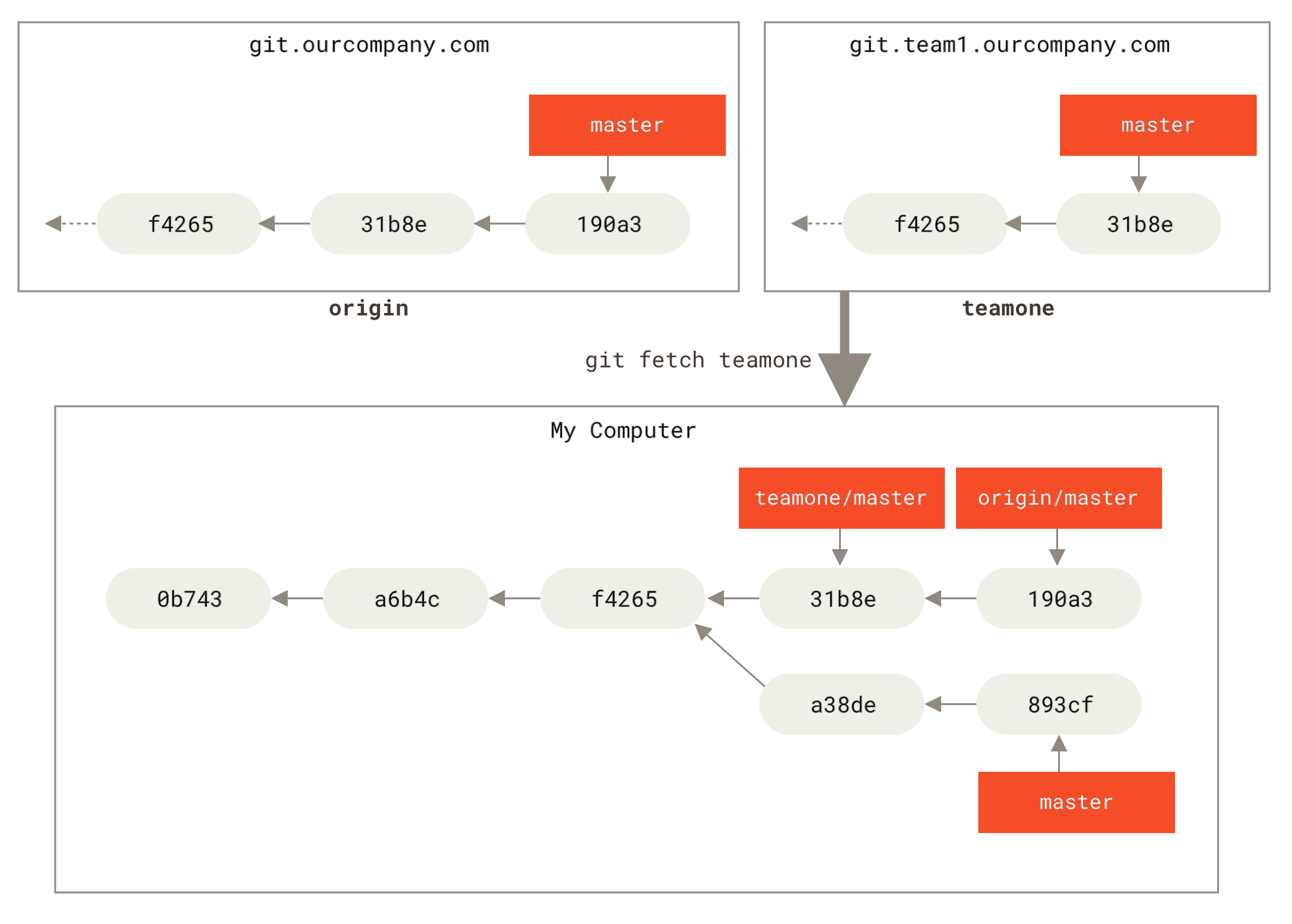
Figure 5. Remote-tracking branch teamone/master
# Pushing
When you want to share a branch publicly, you need to push it to a remote repository that you have write access to. Your local branches are not automatically synchronized with remotes -- you must explicitly push the branches you want to share. This way, you can keep private branches for work you don't want to share, and push only the branches you need to collaborate on.
If you want to work with others on a branch named serverfix, you can push it the same way you pushed your first branch. Run git push <remote> <branch>:
$ git push origin serverfix
Counting objects: 24, done.
Delta compression using up to 8 threads.
Compressing objects: 100% (15/15), done.
Writing objects: 100% (24/24), 1.91 KiB | 0 bytes/s, done.
Total 24 (delta 2), reused 0 (delta 0)
To https://github.com/schacon/simplegit
 * [new branch]      serverfix -> serverfix
2
3
4
5
6
7
8
Some simplification happened here. Git automatically expands the serverfix branch name to refs/heads/serverfix:refs/heads/serverfix, which means "push my local serverfix branch to update the remote repository's serverfix branch." We will cover the refs/heads/ part in detail in Git Internals (opens new window), but you can skip it for now. You can also run git push origin serverfix:serverfix, which does the same thing -- meaning "push my local serverfix branch to serve as the remote repository's serverfix branch." You can use this format to push a local branch to a remote branch with a different name.
# Renaming a Branch on the Remote Repository
If you don't want the remote branch to be called serverfix, you can run git push origin serverfix:awesomebranch to push your local serverfix branch to the awesomebranch branch on the remote repository.
| Note | How to avoid entering your password every time. If you are using an HTTPS URL to push, the Git server will ask for a username and password. By default, it will prompt in the terminal. If you don't want to enter them every time you push, you can set up a "credential cache". The simplest way is to keep it in memory for a few minutes by running git config --global credential.helper cache. For more available credential caching options, see Credential Storage (opens new window). |
|---|---|
The next time other collaborators fetch from the server, they will get a remote branch origin/serverfix pointing to the server's serverfix branch reference:
$ git fetch origin
remote: Counting objects: 7, done.
remote: Compressing objects: 100% (2/2), done.
remote: Total 3 (delta 0), reused 3 (delta 0)
Unpacking objects: 100% (3/3), done.
From https://github.com/schacon/simplegit
 * [new branch]      serverfix    -> origin/serverfix
2
3
4
5
6
7
It is important to note that when you fetch new remote-tracking branches, you don't automatically get a local editable copy. In other words, in this case you won't have a new serverfix branch -- only a read-only origin/serverfix pointer.
You can run git merge origin/serverfix to merge this work into your current branch. If you want your own serverfix branch to work on, you can base it on the remote-tracking branch:
$ git checkout -b serverfix origin/serverfix
Branch serverfix set up to track remote branch serverfix from origin.
Switched to a new branch 'serverfix'
2
3
This gives you a local branch to work on that starts where origin/serverfix is.
# Tracking Branches
Checking out a local branch from a remote-tracking branch automatically creates what is called a "tracking branch" (the branch it tracks is called the "upstream branch"). Tracking branches are local branches that have a direct relationship with a remote branch. If you are on a tracking branch and type git pull, Git automatically knows which server to fetch from and which branch to merge.
When you clone a repository, it usually automatically creates a master branch that tracks origin/master. However, you can set up other tracking branches if you wish -- ones that track branches on other remotes or that don't track the master branch. The simplest case is the example you just saw, running git checkout -b <branch> <remote>/<branch>. This is such a common operation that Git provides the --track shortcut:
$ git checkout --track origin/serverfix
Branch serverfix set up to track remote branch serverfix from origin.
Switched to a new branch 'serverfix'
2
3
Since this operation is so common, there's even a shortcut for the shortcut. If the branch you're trying to check out (a) doesn't exist and (b) exactly matches a name on only one remote, Git will automatically create a tracking branch for you:
$ git checkout serverfix
Branch serverfix set up to track remote branch serverfix from origin.
Switched to a new branch 'serverfix'
2
3
If you want to set a local branch to a different name than the remote branch, you can easily use the previous command with a different local branch name:
$ git checkout -b sf origin/serverfix
Branch sf set up to track remote branch serverfix from origin.
Switched to a new branch 'sf'
2
3
Now your local branch sf will automatically pull from origin/serverfix.
To set an existing local branch to track a recently pulled remote branch, or to change the upstream branch being tracked, you can use the -u or --set-upstream-to option with git branch at any time:
$ git branch -u origin/serverfix
Branch serverfix set up to track remote branch serverfix from origin.
2
| Note | Upstream shortcut. When you have a tracking branch set up, you can reference its upstream branch with the shorthand @{upstream} or @{u}. So if you're on the master branch and it's tracking origin/master, you can use git merge @{u} instead of git merge origin/master. |
|---|---|
# Viewing Tracking Branches
If you want to see all your tracking branches, use the -vv option with git branch. This lists all local branches with additional information, such as which remote branch each is tracking and whether the local branch is ahead, behind, or both.
$ git branch -vv
  iss53     7e424c3 [origin/iss53: ahead 2] forgot the brackets
  master    1ae2a45 [origin/master] deploying index fix
* serverfix f8674d9 [teamone/server-fix-good: ahead 3, behind 1] this should do it
  testing   5ea463a trying something new
2
3
4
5
Here you can see that the iss53 branch is tracking origin/iss53 and is "ahead" by 2, meaning there are two local commits that haven't been pushed to the server. You can also see that the master branch is tracking origin/master and is up to date. Next, serverfix is tracking the server-fix-good branch on the teamone server and is ahead by 3 and behind by 1, meaning one commit on the server hasn't been merged in while three local commits haven't been pushed. Finally, testing is not tracking any remote branch.
One important thing to note is that these numbers come from the last time you fetched from each server. This command does not contact the servers; it only tells you about locally cached server data. If you want up-to-date ahead and behind numbers, you need to fetch from all remotes first:
$ git fetch --all; git branch -vv
# Pulling
When git fetch fetches data from the server that you don't have locally, it does not modify anything in your working directory. It only fetches the data and lets you merge it yourself. However, there is a command called git pull that in most cases is essentially a git fetch immediately followed by a git merge. If you have a tracking branch set up as demonstrated in the previous chapter -- whether explicitly or created for you by clone or checkout -- git pull will look up the server and branch your current branch tracks, fetch from that server, and then try to merge in that remote branch.
Since git pull's magic can often be confusing, it is generally better to explicitly use the fetch and merge commands separately.
# Deleting Remote Branches
Suppose you have finished all your work through a remote branch -- meaning you and your collaborators have completed a feature and merged it into the remote repository's master branch (or any other stable code branch). You can delete a remote branch using the git push command with the --delete option. If you want to delete the serverfix branch from the server, run:
$ git push origin --delete serverfix
To https://github.com/schacon/simplegit
 - [deleted]         serverfix
2
3
Basically, all this does is remove the pointer from the server. The Git server typically retains the data until garbage collection runs, so if it was accidentally deleted, it is usually easy to recover.