
 Git Branches - Rebasing
# Git Branches - Rebasing
In Git, there are two main ways to integrate changes from different branches: merge and rebase. In this section, we will learn what "rebasing" is, how to use it, what makes it so powerful, and in which cases you should avoid using it.
# Basic Rebase Operation
Recall the earlier example from Basic Merging (opens new window), where the development work forked into two different branches, each with its own updates.
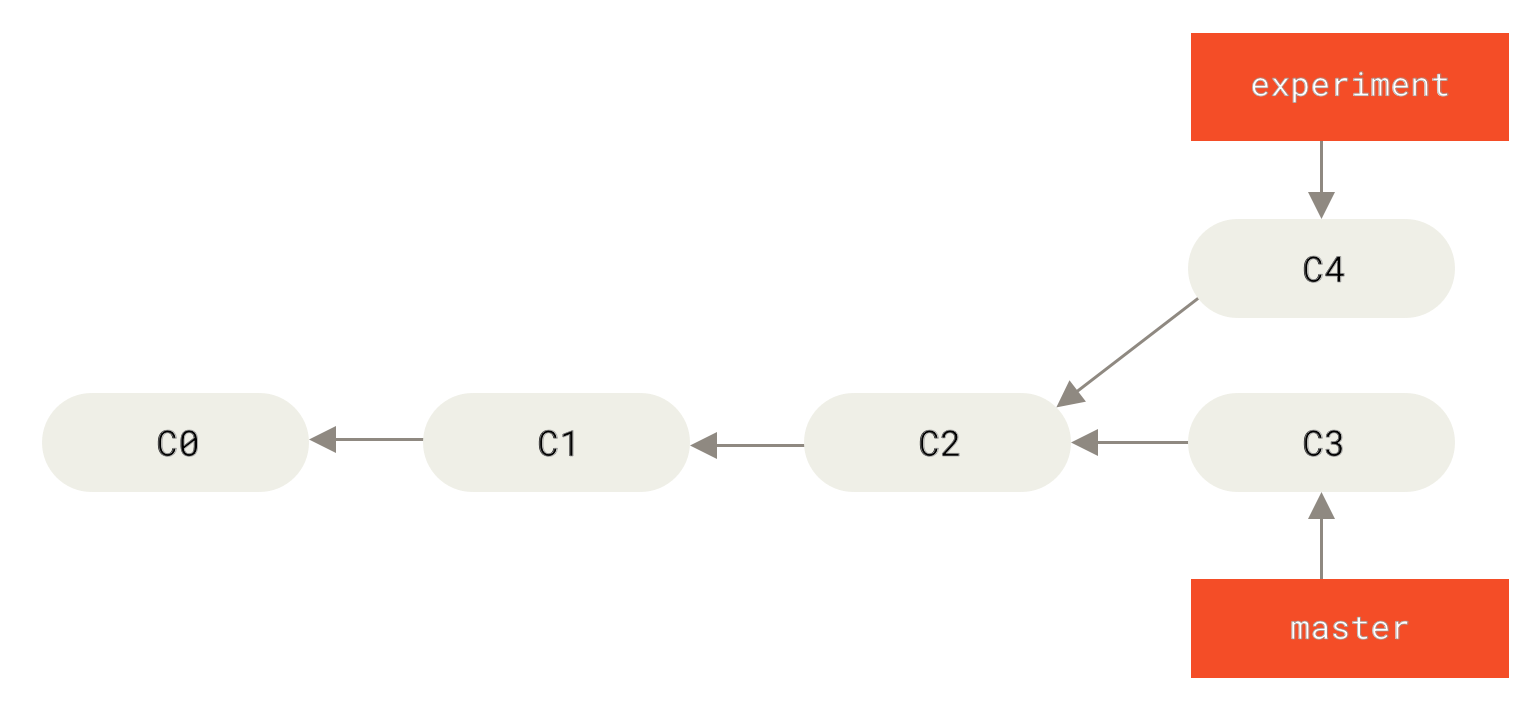
Figure 0. Divergent commit history
As previously discussed, the simplest way to integrate branches is the merge command. It performs a three-way merge between the two latest branch snapshots (C3 and C4) and the most recent common ancestor (C2), producing a new snapshot (and commit).
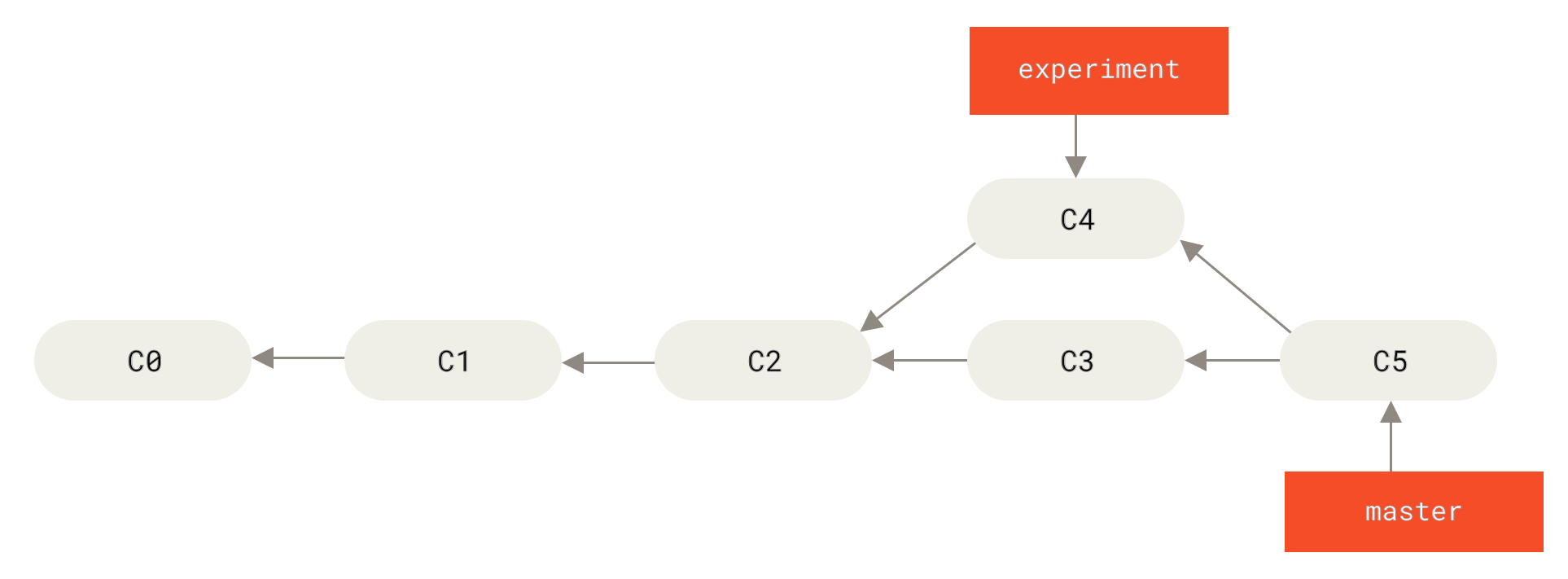
Figure 1. Merging to integrate diverged history
# Concept
Rebasing means: copying all changes from one branch onto another branch.
Besides merge, there is another approach: you can extract the patch and changes introduced in C4 and apply them on top of C3. In Git, this is called rebasing. You can use the rebase command to move all commits from one branch onto another, as if "replaying" them.
In this example, you can check out the experiment branch and then rebase it onto the master branch:
$ git checkout experiment
$ git rebase master # Rebase the changes from experiment onto the master branch (move experiment's commits onto master)
First, rewinding head to replay your work on top of it...
Applying: added staged command
2
3
4
The principle is to first find the most recent common ancestor (C2) of the two branches (the current branch experiment and the target base branch master), then compare the successive commits of the current branch relative to that ancestor, extract the corresponding changes and save them as temporary files, then point the current branch to the target base C3, and finally apply the previously saved changes in order.
# Principle
Find the most recent common ancestor of the current branch and the target branch.
Compare the successive commits of the current branch relative to that common ancestor.
Extract the corresponding changes and save them as temporary files.
Point the current branch to the target branch.
Apply the previously saved changes in order.
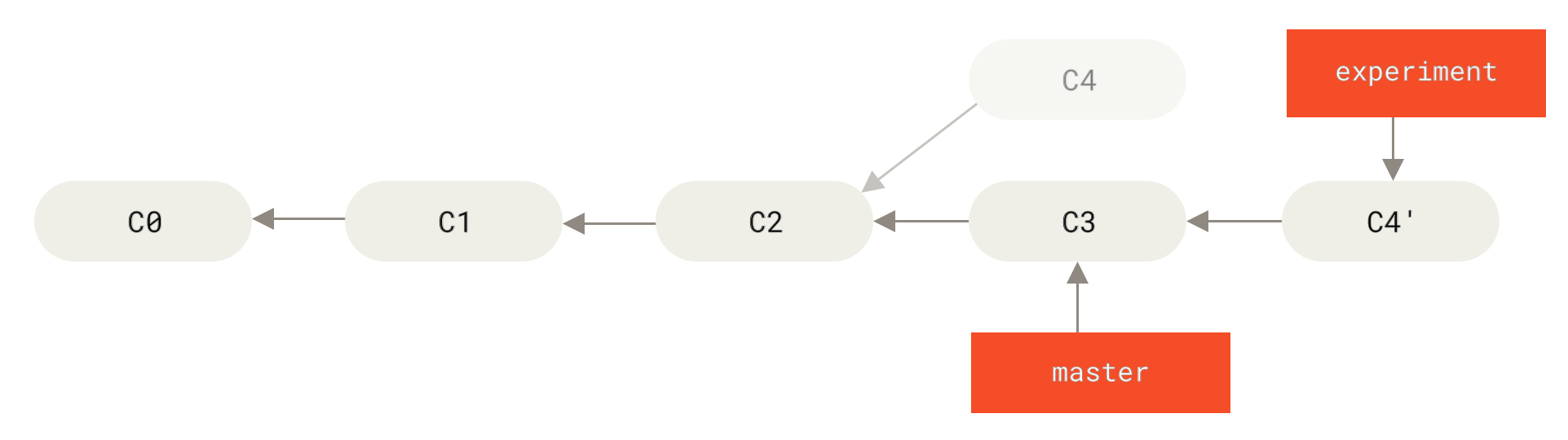
Figure 2. Rebasing the changes from C4 onto C3
Now switch back to the master branch and perform a fast-forward merge.
$ git checkout master
$ git merge experiment
2
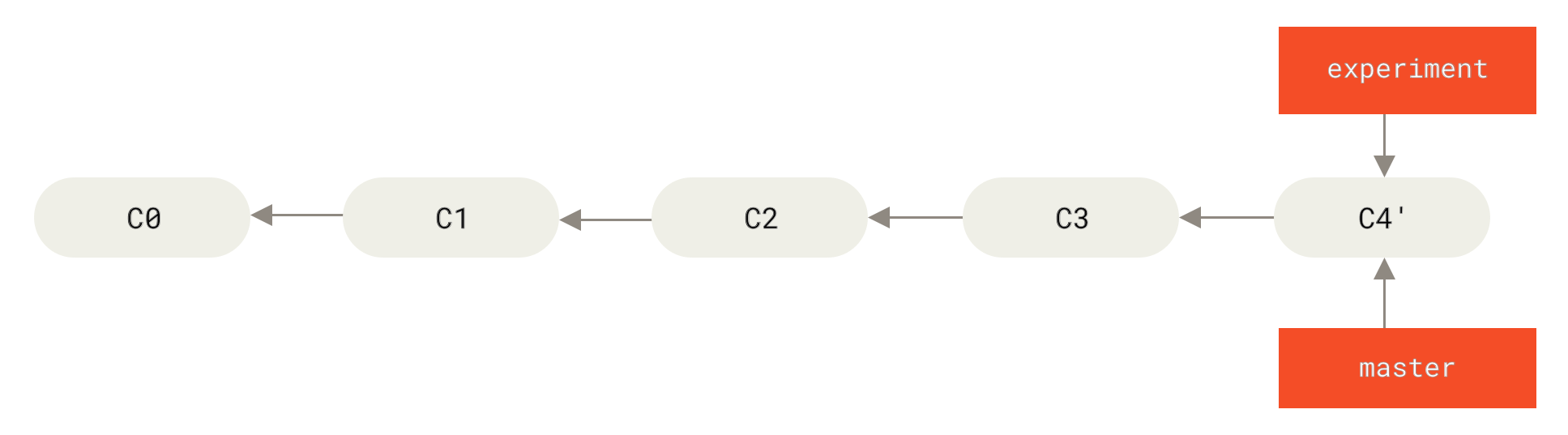
Figure 3. Fast-forward merge of the master branch
# Steps
First check out the source branch, rebase the source branch's changes onto the target branch. Switch back to the target branch and perform a fast-forward merge.
# Illustration:
git checkout <source-branch>
git (source-branch-changes)rebase(onto) <target-branch>
git checkout <target-branch>
git merge <source-branch>
2
3
4
5
At this point, the snapshot pointed to by C4' is exactly the same as the one pointed to by C5 in the merge example (opens new window). The end results of these two integration methods are identical, but rebasing makes the commit history cleaner. When you examine the history of a rebased branch, it appears linear even though the actual development work was done in parallel -- the commit history is a straight line with no forks.
We typically do this to ensure that commits apply cleanly when pushing to a remote branch -- for example, when contributing code to a project maintained by someone else. In this case, you would first develop in your own branch, and when development is complete, you rebase your code onto origin/master before submitting your changes to the main project. This way, the project maintainer doesn't need to do any integration work -- just a fast-forward merge.
Note that whether you integrate via rebasing or three-way merge, the final snapshot is always the same -- only the commit history differs. Rebasing replays a series of commits in their original order onto another branch, while merging takes the final results and combines them.
# Advantage
The advantage of rebasing: it makes the commit history cleaner.
# A More Interesting Rebase Example
When rebasing two branches, the "replayed" commits don't necessarily have to be applied on the target branch -- you can also apply them on a different branch. For example, as in the commit history with a topic branch branched off another topic branch (opens new window). You created a topic branch server to add server-side functionality, committing C3 and C4. Then from C3, you created another topic branch client for client-side functionality, committing C8 and C9. Finally, you went back to server and committed C10.
# A More Interesting Rebase Example
When rebasing two branches, the "replayed" commits don't necessarily have to be applied on the target branch -- you can also apply them on a different branch. For example, as in the commit history with a topic branch branched off another topic branch (opens new window). You created a topic branch server to add server-side functionality, committing C3 and C4. Then from C3, you created another topic branch client for client-side functionality, committing C8 and C9. Finally, you went back to server and committed C10.
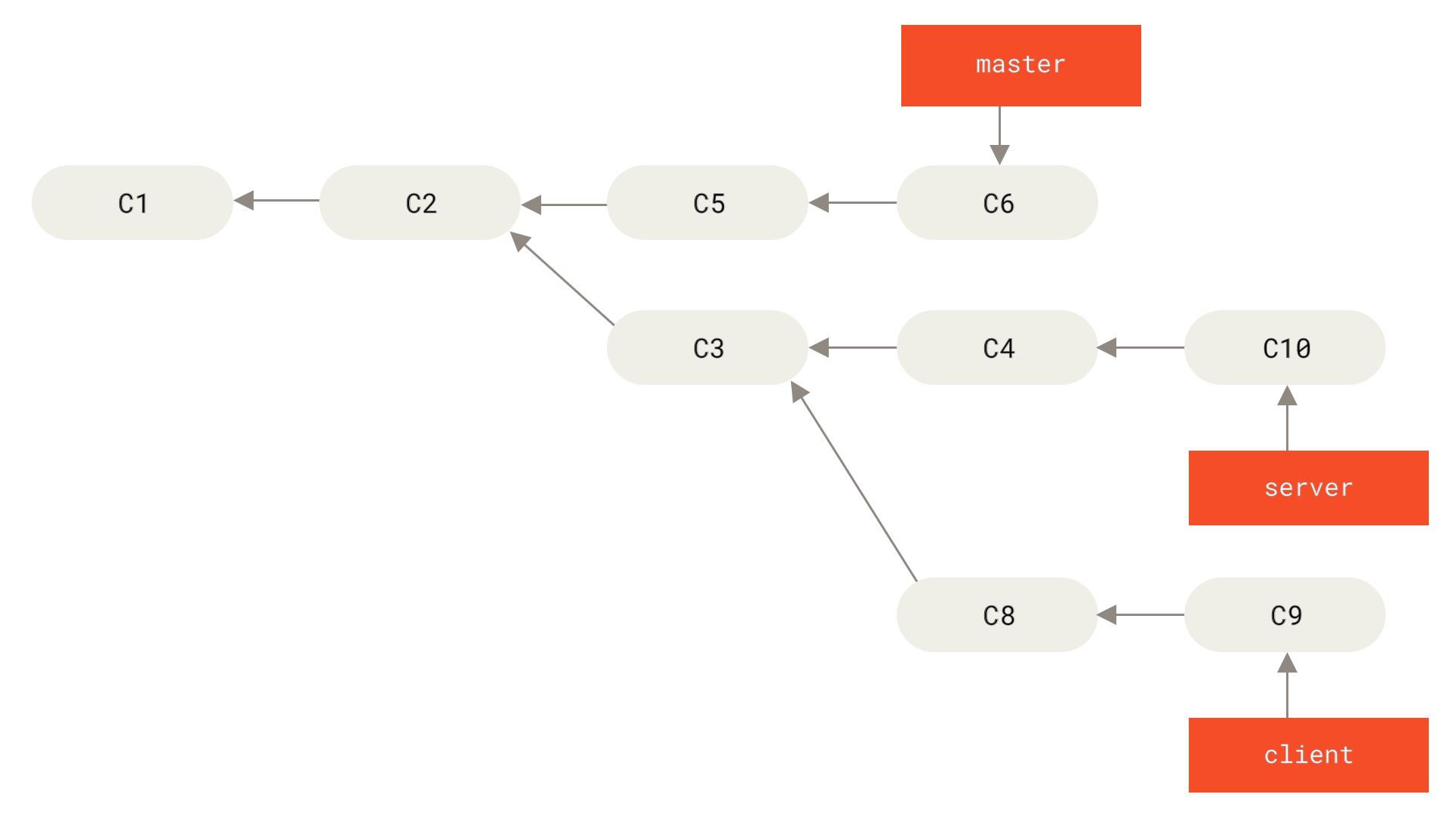
Figure 4. Commit history with a topic branch branched off another topic branch
Suppose you want to merge the client changes into the main branch for release, but you don't want to merge the server changes yet because they still need more thorough testing. In this case, you can use the --onto option of git rebase to select changes in the client branch that are not in the server branch (i.e., C8 and C9) and replay them on master:
$ git rebase --onto master server client
This means: "Take the client branch, find the patches since it diverged from the server branch, and replay them on the master branch as if client were directly based on master." This is somewhat complex to understand, but the result is very cool.
# The --onto Option
Select changes in branch C that are not in branch B, and apply them onto branch A.
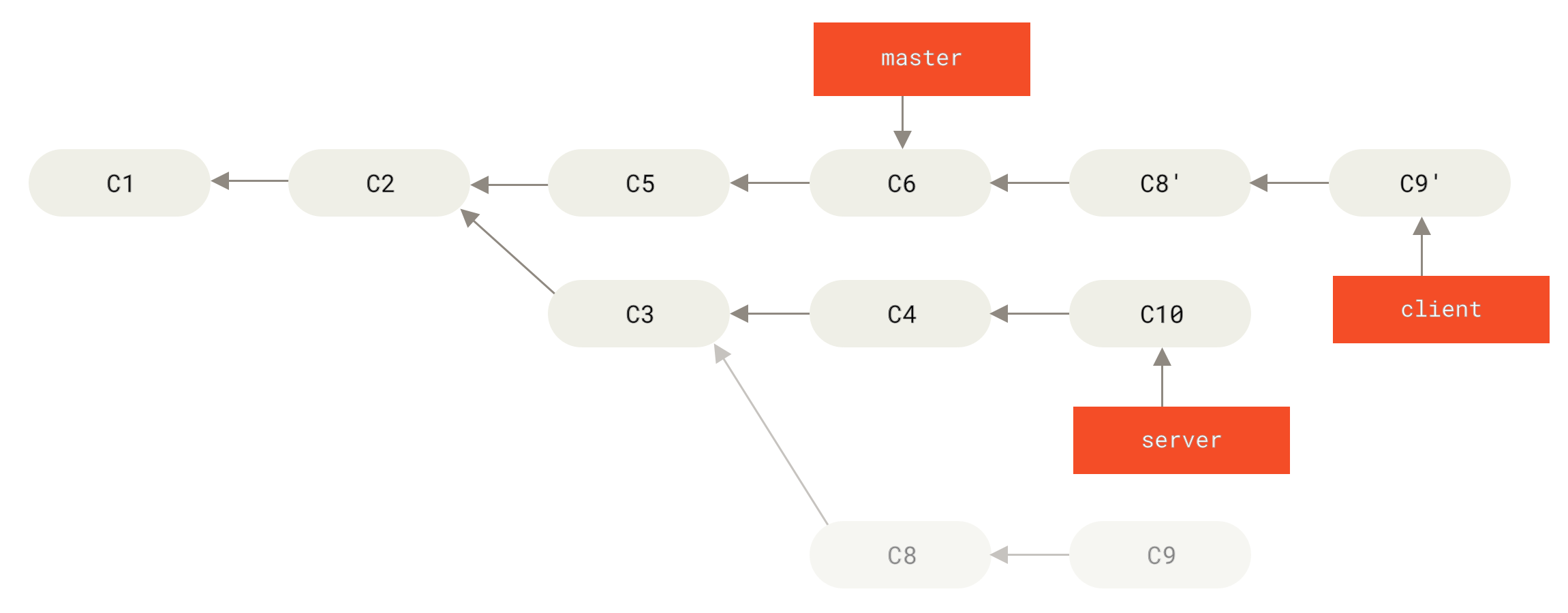
Figure 5. Rebasing a topic branch off another topic branch onto a different branch
Now you can fast-forward the master branch. (As shown in Fast-forwarding the master branch to include client changes (opens new window)):
$ git checkout master
$ git merge client
2
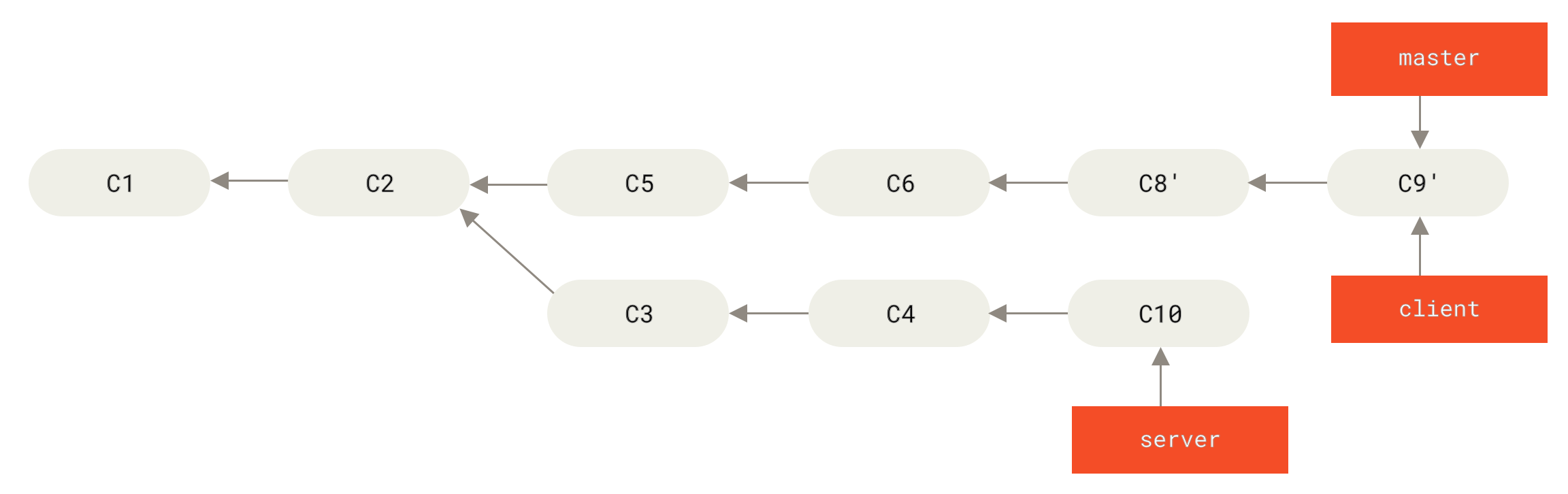
Figure 6. Fast-forwarding master to include changes from client
# Skipping the Step of Switching to the Source Branch
git rebase <target(current)-branch> <source-branch> # Rebase the source branch onto the target branch. After running this, you will automatically be switched to the source branch
git checkout <target-branch>
git merge <source-branch>
2
3
Note: When using this method, make sure the code on the source branch is up to date.
Next, you decide to integrate the server branch changes as well. Using git rebase <basebranch> <topicbranch> lets you directly rebase the topic branch (i.e., server in this case) onto the target branch (i.e., master). This saves you the step of switching to the server branch before running rebase.
$ git rebase master server
As shown in Rebasing server onto master (opens new window), the code in server has been appended after master.

Figure 7. Rebasing server onto master
Then you can fast-forward the main branch master:
$ git checkout master
$ git merge server
2
At this point, changes from both client and server have been integrated into the main branch. You can delete both branches, and the final commit history will look like the final commit history (opens new window):
$ git branch -d client
$ git branch -d server
2

Figure 8. The final commit history
# The Perils of Rebasing
# The Golden Rule
The wonderful rebase is not without its pitfalls. To use it properly, you must follow this guideline:
Do not rebase commits that exist outside your repository and that other people may have based work on.
If you follow this golden rule, you'll be fine. Otherwise, people will hate you, and your friends and family will ridicule and despise you.
Tip
For example: when multiple people are developing and committing on the same topic branch simultaneously, do not rebase mid-development. Only rebase after everyone has completed their work.
# The Nature of Rebase
The essence of a rebase operation is to discard some existing commits and create new ones that have the same content but are actually different. If you have pushed commits to a repository and other people have pulled those commits and based work on them, and then you rewrite those commits with git rebase and push them again, your collaborators will have to re-merge their work with yours. If you then pull and integrate their modified commits, things will get very messy.
Let's look at what happens when you rebase work that has been made public. Suppose you clone from a central server and do some development. Your commit history looks like this:
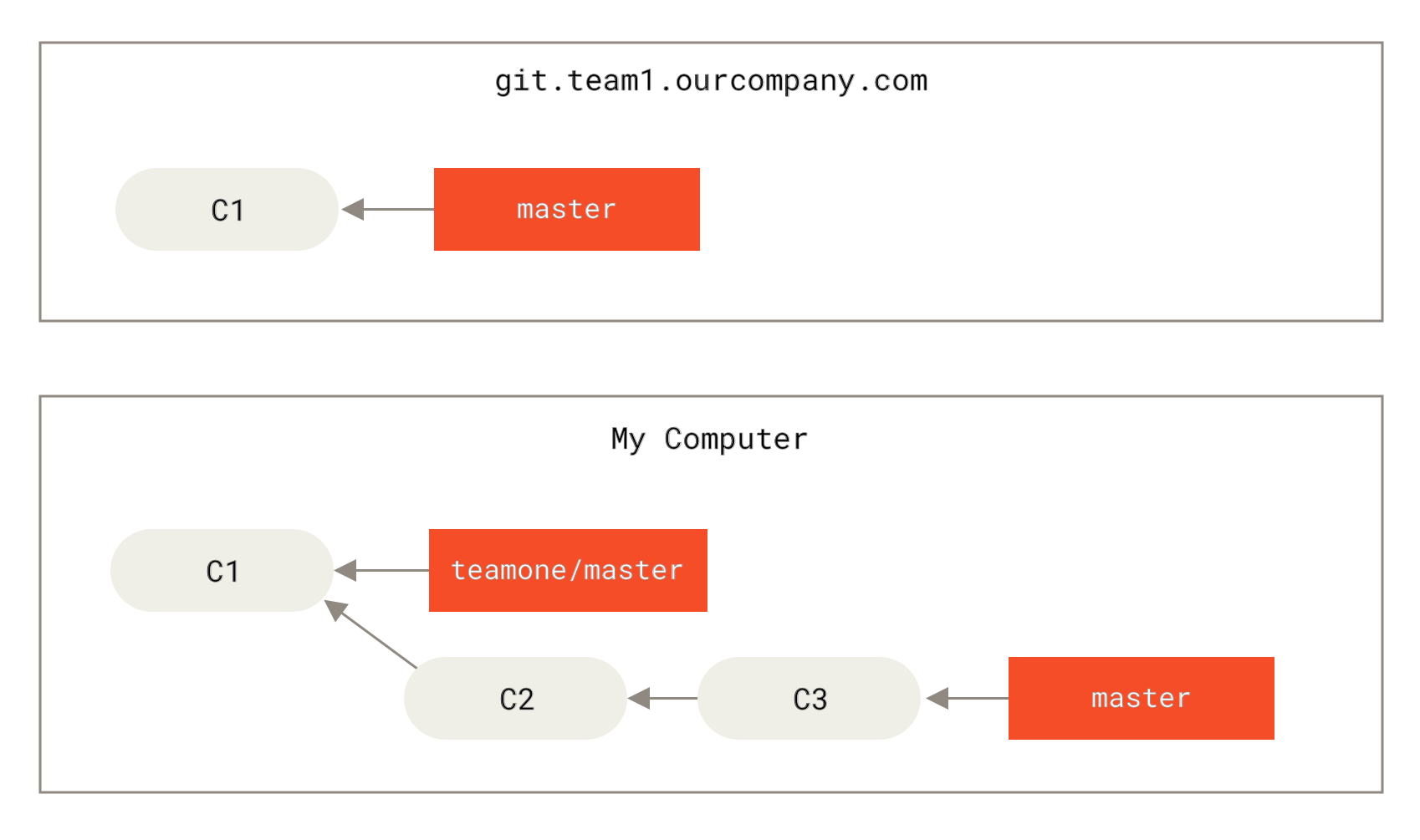
Figure 9. Clone a repository and do some development
Then someone else pushes changes to the central server, including a merge. You fetch these changes on the remote branch and merge them into your local development branch, making your history look like this:
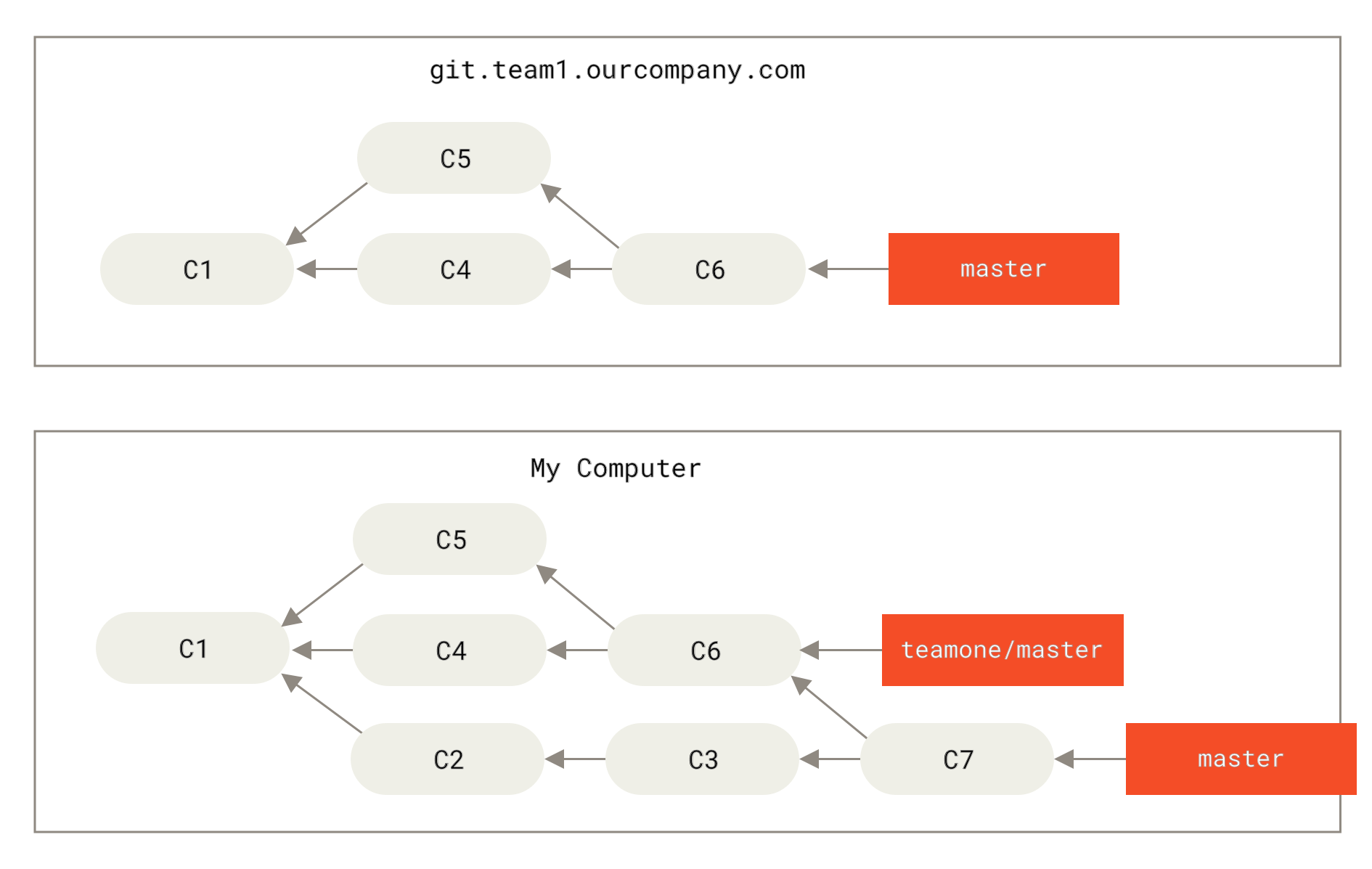
Figure 10. Fetch others' commits and merge into your development branch
Then that person decides to undo the merge and rebase instead, then force-pushes with git push --force to overwrite the server history. You then fetch updates from the server and find some new commits.
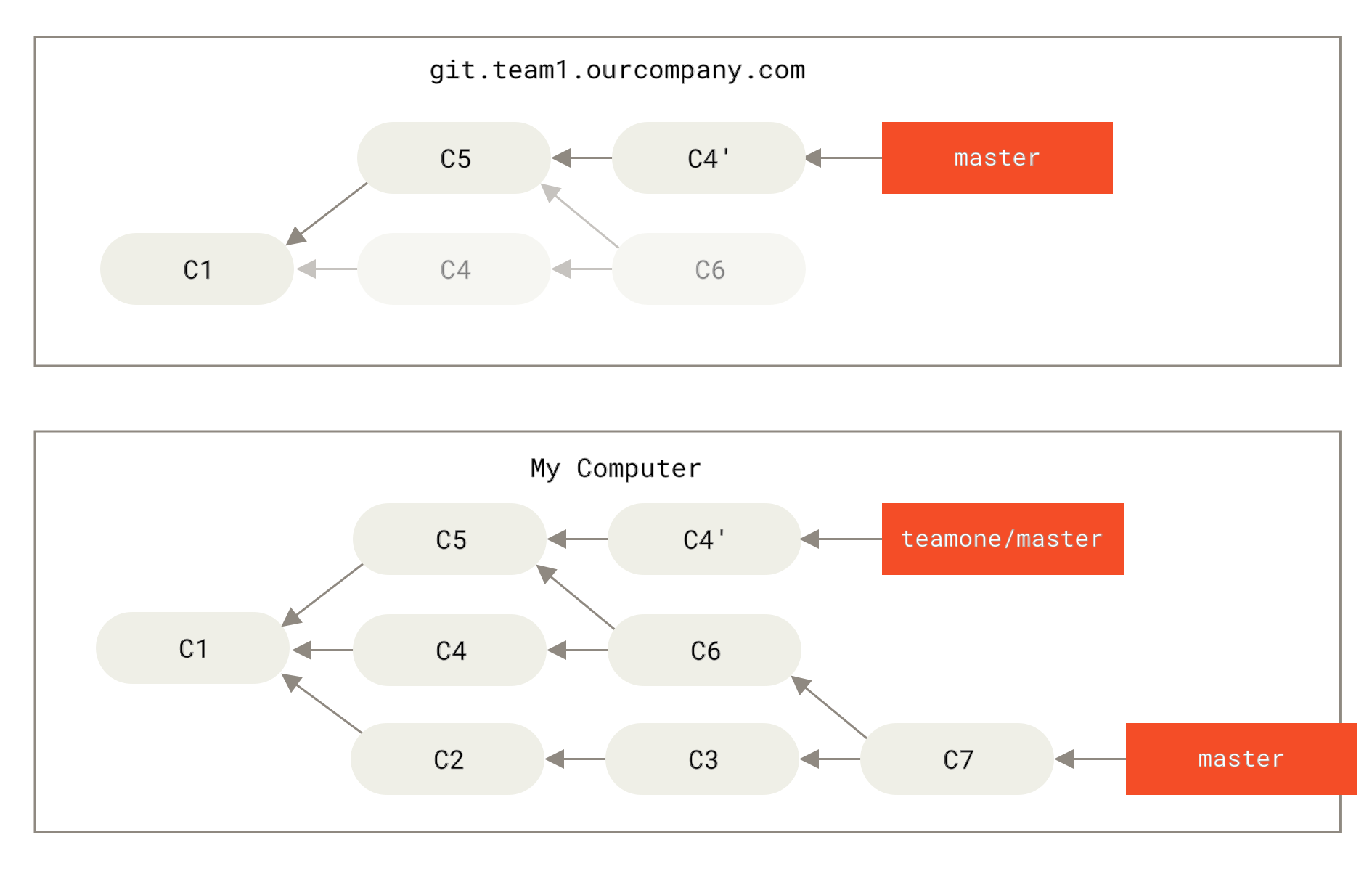
Figure 11. Someone pushes rebased commits, discarding commits your work was based on
The result is an awkward situation for both of you. If you run git pull, you will merge content from two commit histories, producing a new merge commit, and your repository will look like this:
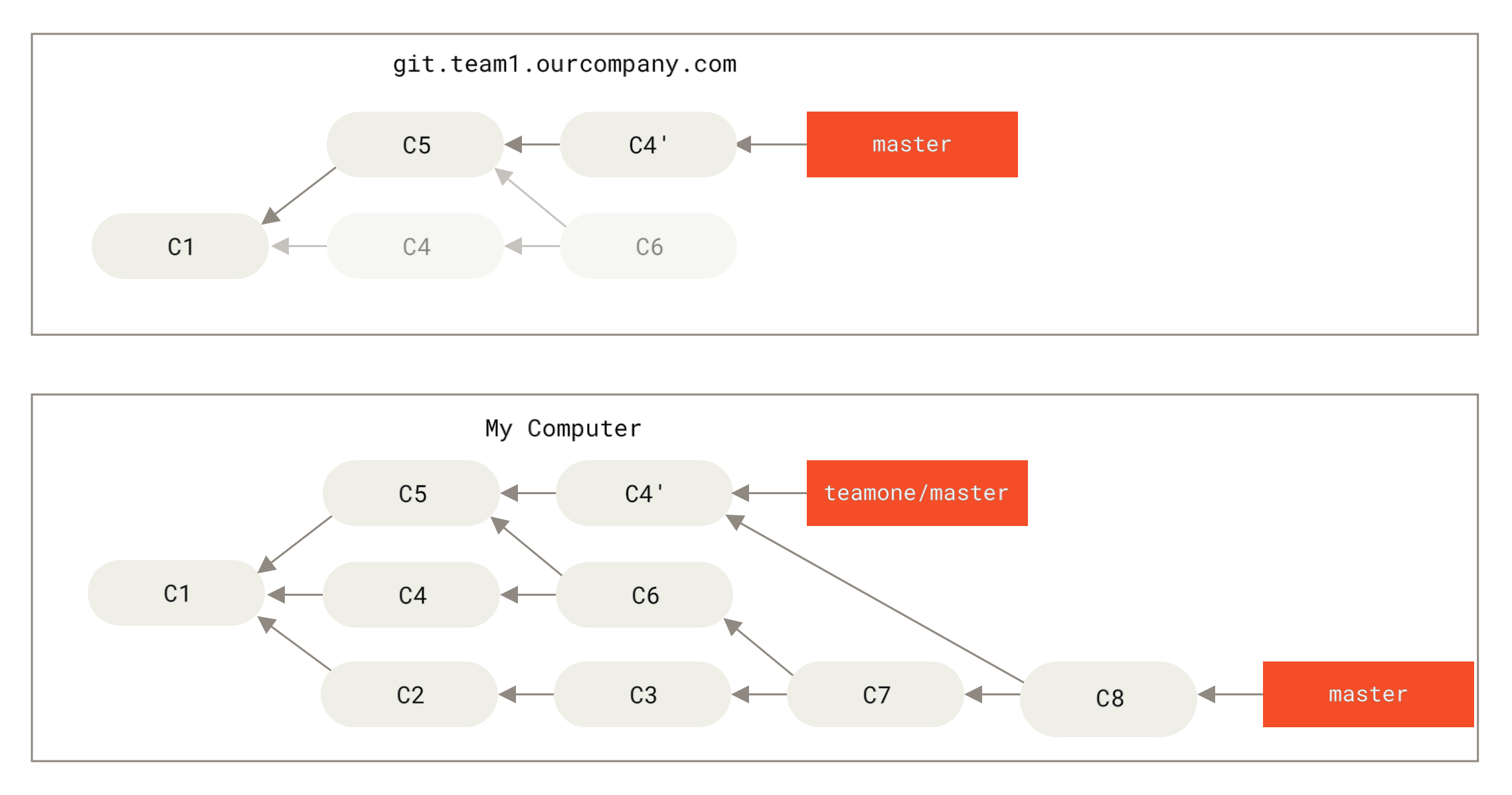
Figure 12. You merge the same content again, producing a new commit
If you now run git log, you'll see two commits with the same author, date, and message, which is confusing. Furthermore, if you push this back to the server, you are essentially re-introducing commits that were already discarded by the rebase, which is even more confusing. The other person clearly did not want C4 and C6 in the history -- that's why they rebased them away in the first place.
# Rebase When You Rebase
If you do find yourself in such a situation, Git has some advanced tricks to help. If someone on your team force pushes changes that overwrite work you've based yours on, your challenge is to figure out what is yours and what they've rewritten.
In fact, Git computes not only the SHA-1 checksum for the entire commit but also a checksum for the patch introduced by the commit -- called a "patch-id."
If you pull the overwritten updates and rebase your work on top of them, Git can usually successfully determine which changes are yours and apply them to the new branch.
For example, in the scenario mentioned earlier where someone pushes rebased commits that discard commits your work was based on (opens new window), if instead of merging we run git rebase teamone/master, Git will:
- Determine which commits are unique to our branch (C2, C3, C4, C6, C7)
- Determine which of those are not merge commits (C2, C3, C4)
- Determine which of those were not rewritten into the target branch (only C2 and C3, since C4 is the same patch as C4')
- Apply those commits on top of
teamone/master
This gives us a different result from merging the same content again (opens new window), as shown in Rebasing on top of force-pushed rebased work (opens new window).
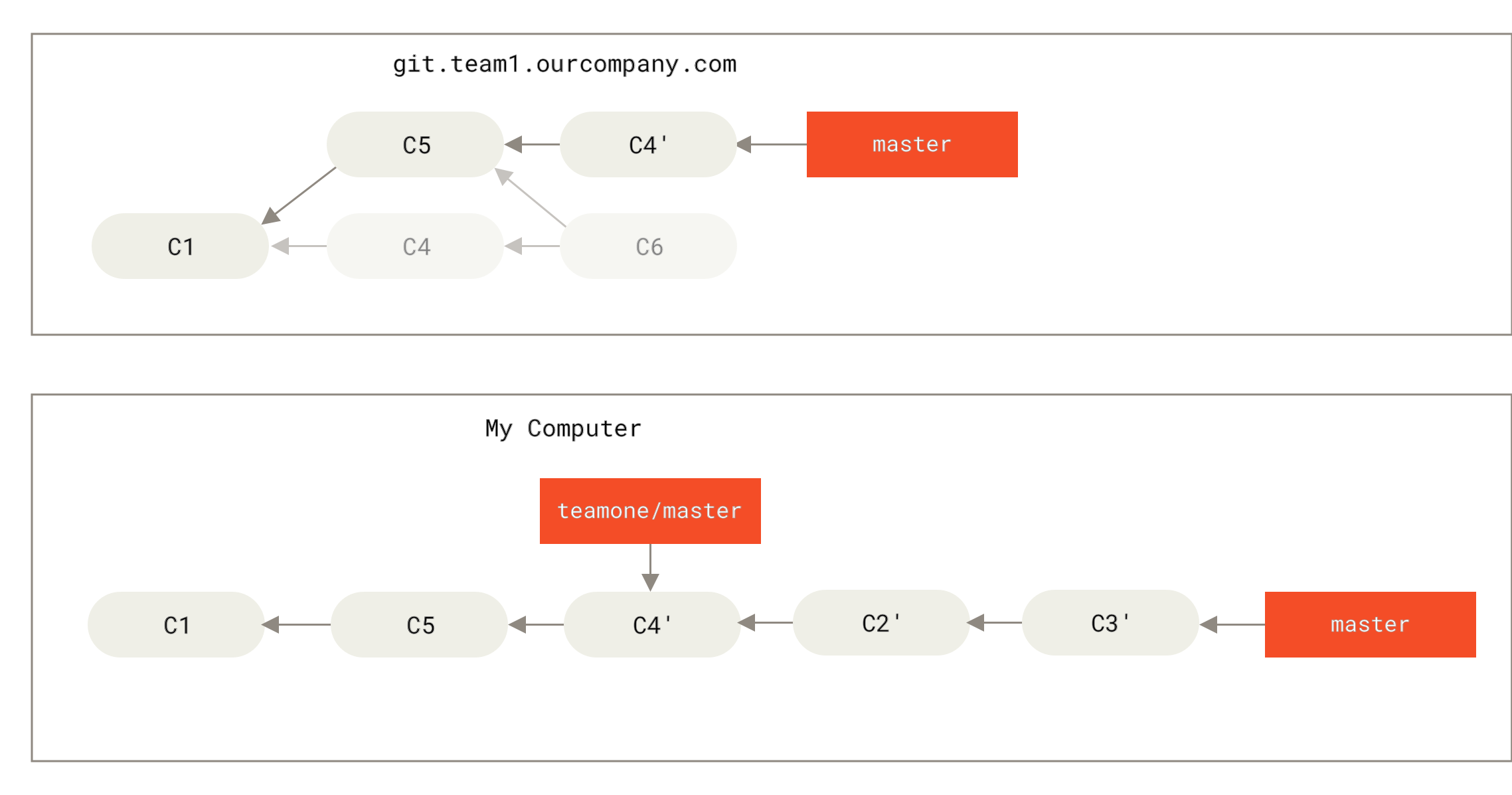
Figure 13. Rebasing on top of force-pushed rebased work
For this to work, the other person must ensure that C4' and C4 are nearly identical patches. Otherwise, the rebase won't be able to identify them, and it will create another C4-like patch (which likely won't integrate cleanly, since the changes already exist somewhere).
In this example, another simple approach is to use git pull --rebase instead of a plain git pull. Or you can do it manually with git fetch followed by git rebase teamone/master.
If you prefer using git pull and want --rebase to be the default, you can set the pull.rebase config option with git config --global pull.rebase true.
If you only rebase commits that never leave your machine, everything will be fine. If you rebase commits that have been pushed but nobody else has based work on them, that's also fine. If you rebase commits that have been pushed to a shared repository and people have based work on those commits, then you're in for a bad time and your colleagues will despise you.
If you or your colleagues decide to do this anyway, make sure everyone knows to run git pull --rebase to minimize the pain.
# Rebase vs. Merge
Now that you've seen rebasing and merging in action, you may be wondering which is better. Before answering, let's step back and talk about what commit history means.
One perspective is that the repository's commit history is a record of what actually happened. It is a historical document with inherent value and should not be tampered with. From this angle, changing commit history is almost sacrilegious -- you're using lies to cover up what actually happened. If the merge-produced history is messy, so be it -- those traces should be preserved for posterity.
The opposing view holds that commit history is a story of what happened during the project. No one would publish the first draft of a book, and software maintenance manuals also go through multiple revisions. People with this perspective use rebase and filter-branch to write the story in a way that best serves future readers.
Now, back to the original question: merge or rebase? Hopefully you can see there is no simple answer. Git is a very powerful tool that allows you to do many things with your commit history, but each team and project has different needs. Now that you've learned how to use both, you should be able to make an informed choice based on your situation.
The general principle is: only rebase local changes that have not been pushed or shared with anyone to clean up history, and never rebase commits that have been pushed elsewhere. This way you can enjoy the benefits of both approaches.